New to Casevoya? Here's how to start a fourteen-day trial and set up two-step sign-in, which every staff account needs. No credit card is required. Start with your name, work email, and firm name.
1:01 video·Captions and transcript·1 written guide
01Overview
0:00 / 1:01
Chapters
7
Turn on two-step sign-in
Two-step sign-in is required for every staff account. It protects client records even if a password leaks.
1
Set it up at sign-up
Every staff account sets up two-step sign-in during sign-up, right after confirming the email code.
2
Scan the code
Open your authenticator app and scan the QR code shown, then enter the six-digit code it gives you.
3
Confirm it works
Sign in once more with the new method.
4
Save your recovery codes
Store them somewhere safe and offline. Each code works once.
Setting up two-step sign-in: scan the code with an authenticator app, enter the six-digit code and store your recovery codes. Secret and codes blurred. Sample data.
Screen by screen
Each frame comes from the walkthrough, with the part being explained outlined. Select a frame to play from that moment.
02Licence and password
Next, add your CICC licence number and class, then choose a password. We've blurred those fields here to keep them private.
03Confirm your email
Casevoya emails you a six-digit code. It stays valid for fifteen minutes. Type it in to confirm your address.
04Choose how to start
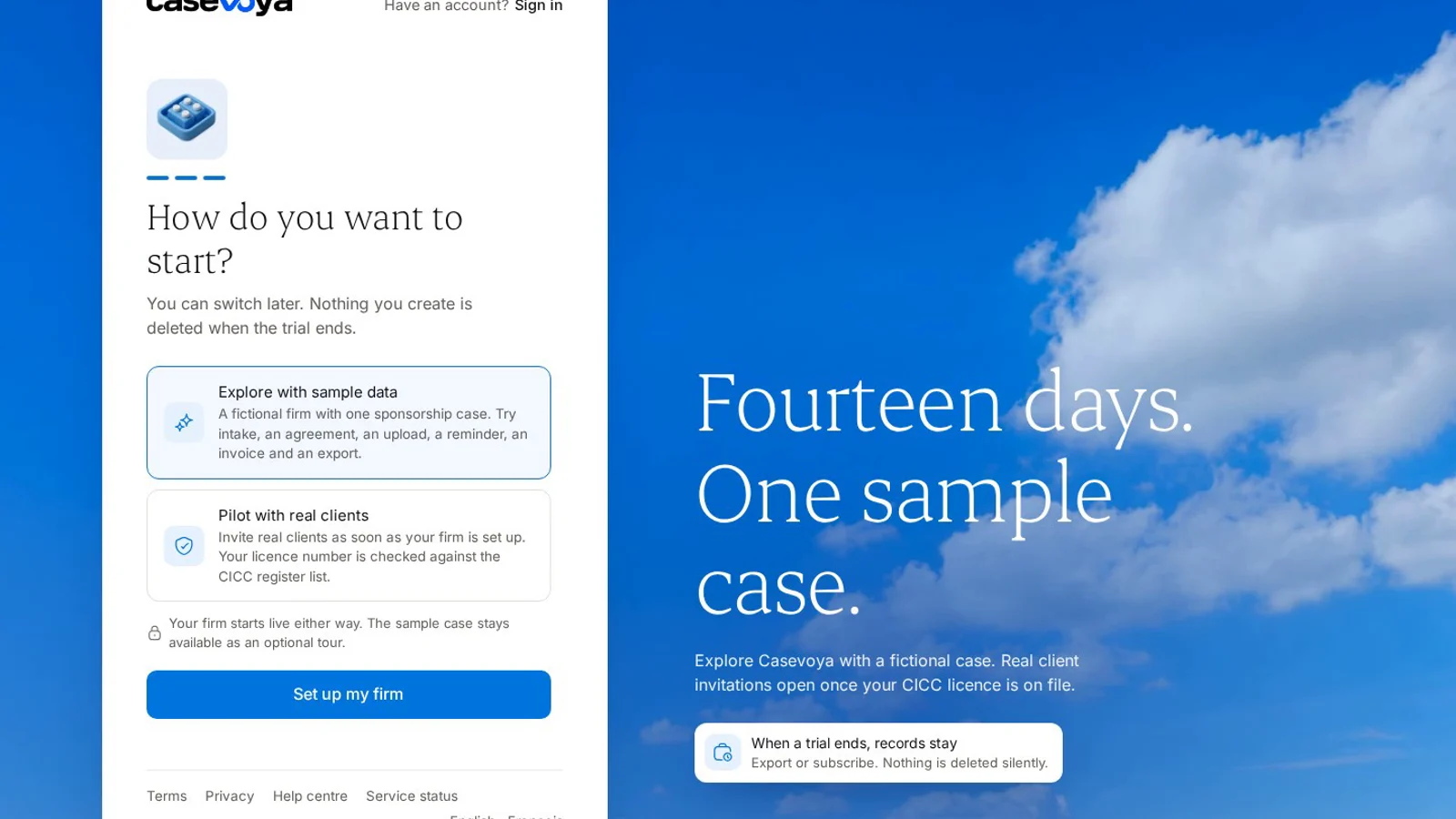
Now choose how to start. Explore with sample data gives you a fictional firm with one sponsorship case. Pilot with real clients is for live work. You can switch later.
05Two-step sign-in
One more check. Every staff account uses two-step sign-in. Scan the code with your authenticator app, enter the six-digit code, and store your recovery codes somewhere safe. The secret and codes are blurred in this video.
06Tell us about your firm
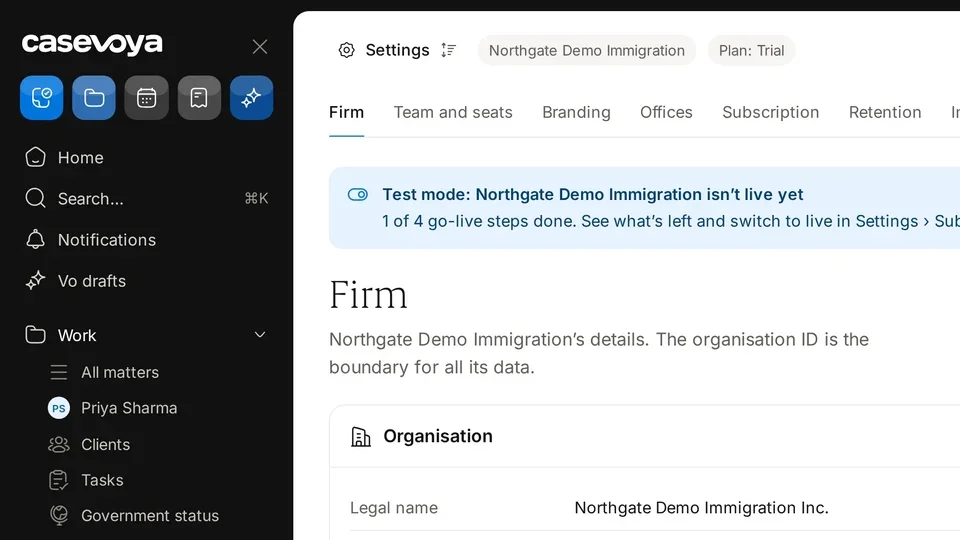
Then confirm your firm's details. You can finish the rest of setup later.
07Your dashboard
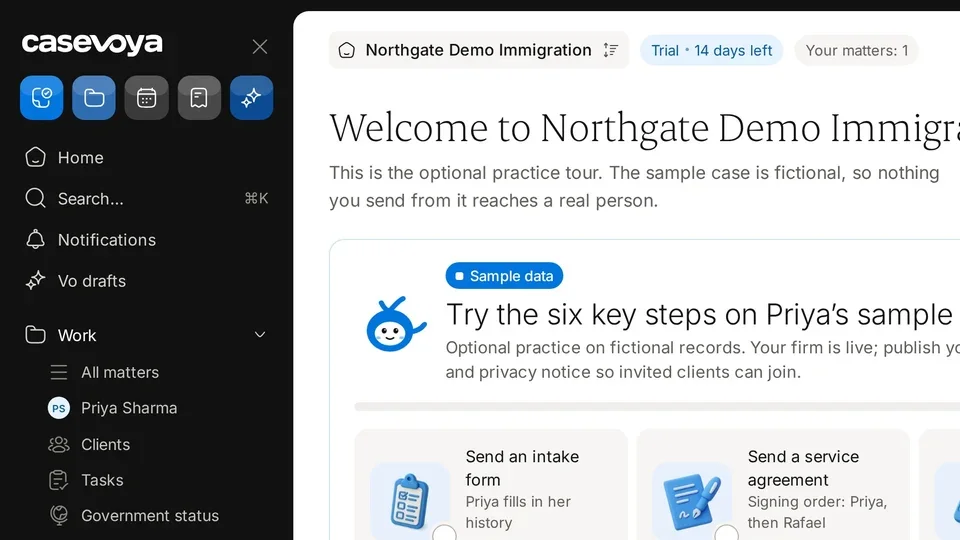
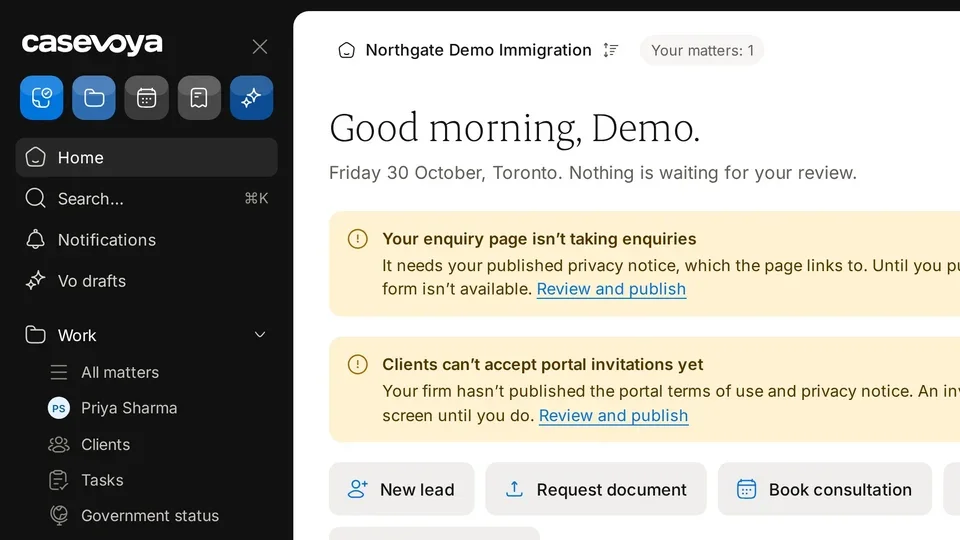
You're in. Your dashboard welcomes you with the first steps to try. That's sign-up and two-step sign-in done.
Overview. New to Casevoya? Here's how to start a fourteen-day trial and set up two-step sign-in, which every staff account needs. No credit card is required. Start with your name, work email, and firm name.
Licence and password. Next, add your CICC licence number and class, then choose a password. We've blurred those fields here to keep them private.
Confirm your email. Casevoya emails you a six-digit code. It stays valid for fifteen minutes. Type it in to confirm your address.
Choose how to start. Now choose how to start. Explore with sample data gives you a fictional firm with one sponsorship case. Pilot with real clients is for live work. You can switch later.
Two-step sign-in. One more check. Every staff account uses two-step sign-in. Scan the code with your authenticator app, enter the six-digit code, and store your recovery codes somewhere safe. The secret and codes are blurred in this video.
Tell us about your firm. Then confirm your firm's details. You can finish the rest of setup later.
Your dashboard. You're in. Your dashboard welcomes you with the first steps to try. That's sign-up and two-step sign-in done.
 Casevoya