Reports

Reports shows how work is moving across your firm, from lead conversion to staff workload. Here is a quick tour.

1:26 video·Captions and transcript·1 written guide

01Overview
0:00 / 1:26

Chapters

10

Run and export a firm report

Reports show how work is moving across your firm, from lead conversion to workload, and exports keep your filters for the record.

  1. 1

    Open Reports

    Go to Practice › Reports. The header shows the period and office, such as All offices.

  2. 2

    Pick a report tab

    Choose Operations, Money, Processing and outcomes, or Scheduled.

  3. 3

    Set the period and filter

    Select Last 90 days, This month or This year. Type in the filter box to narrow by owner, office or program.

  4. 4

    Read each card

    Check each card's figures and its Definition. Use links such as Open consultations or Open matters to go to the underlying work.

  5. 5

    Export

    Select Export at the top right. The export records your filters, when it was made, and who could see it.
Screen by screen

Each frame comes from the walkthrough, with the part being explained outlined. Select a frame to play from that moment.

  1. 02Find it

    You reach it from Practice, then Reports, as the header breadcrumb shows.

  2. 03Period chips

    The header shows the period, 2 Aug – 30 Oct 2026, for All offices.

  3. 04Report tabs

    Tabs split the reports into Operations, Money, Processing and outcomes, and Scheduled.

  4. 05Filter

    Type in the filter box to narrow by owner, office or program. Last 90 days is selected; you can switch to This month or This year.

  5. 06Lead conversion

    Lead conversion counts booked consultations, completed consultations, matters opened, and engaged clients. All four show 0, and the note says no booked consultation has started in this period yet.

  6. 07Definitions

    Each card spells out its definition, with a link such as Open consultations.

  7. 08Workload

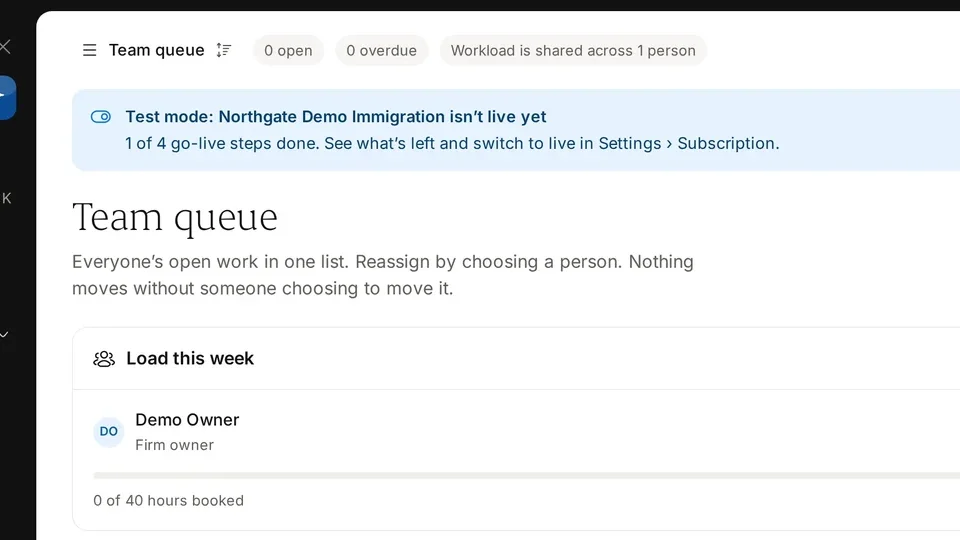
    Workload lists open tasks, overdue tasks, and matters per person. Demo Owner, a fictional demo user, shows 0 across the row. It is for planning, not ranking. Use Open tasks to jump in.

  8. 09Export

    Use Export at the top right. As the description says, exports keep your filters, the time they were made and who could see them.

  9. 10Recap

    So: check the period and office, pick a report tab, filter by owner, office or program, read each card, and export. Next: Consultations.

Did this answer your question?

More in Deadlines and daily work