Matters is a single list for tracking every matter's stage, government status, and money. Here is a quick tour.
1:28 video·Captions and transcript·1 written guide
01Overview
0:00 / 1:28
Chapters
10
Close a matter and set retention
Closing a matter makes its records read-only and sets the date they can be deleted.
1
Open the matter
Go to Work › All matters and open it. Firm stage, government status and money are tracked separately.
2
Choose the retention policy
The date is calculated from your firm’s policy for that kind of matter.
3
Close
Records become read-only, except controlled notes.
4
Legal hold
If a hold applies, records aren’t deleted until it’s released.
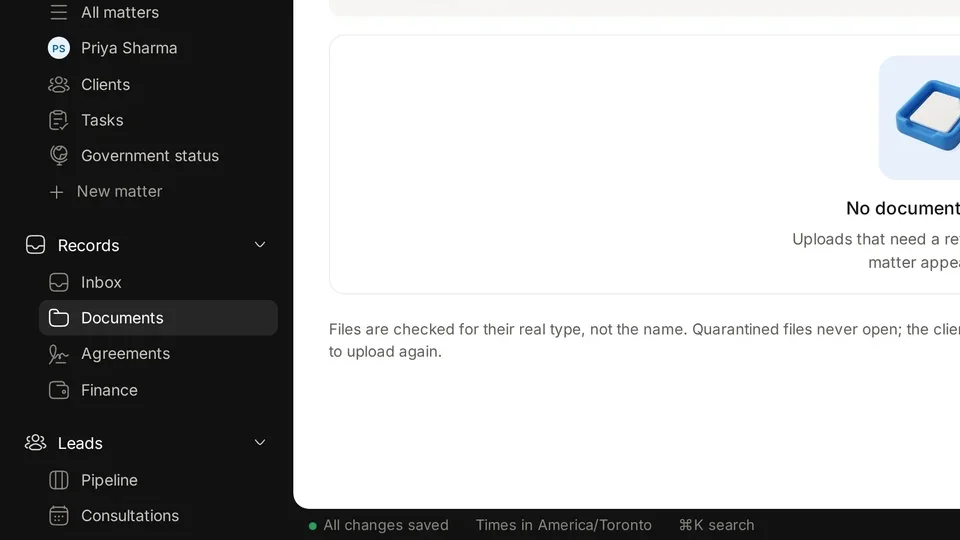
Find All matters in the left sidebar, under Work. Sample data.
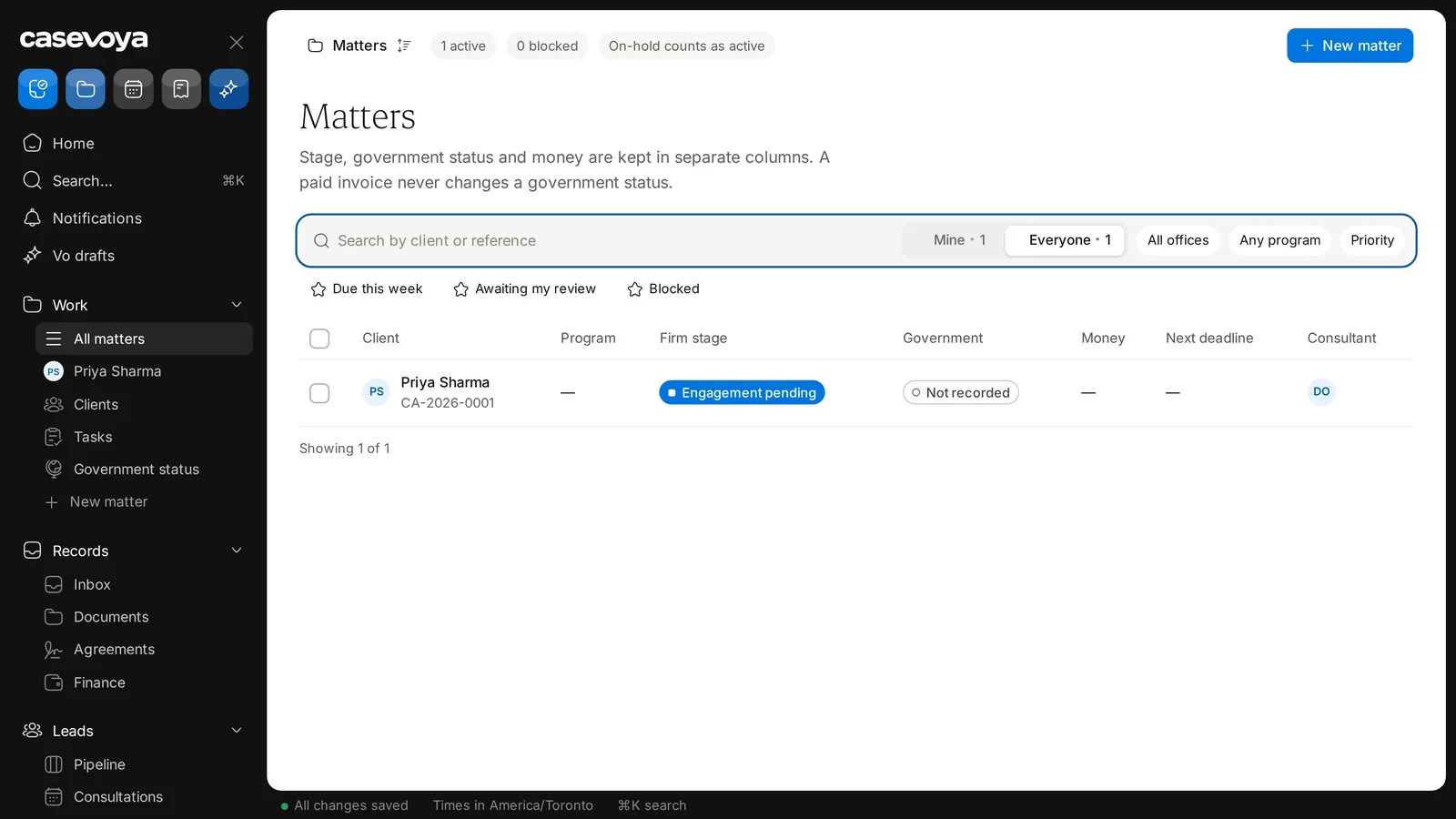
The matters list, where each row shows the firm stage, government status and money for a matter. Sample data.
Screen by screen
Each frame comes from the walkthrough, with the part being explained outlined. Select a frame to play from that moment.
02Find it
Find All matters in the left sidebar, under Work.
03Status chips
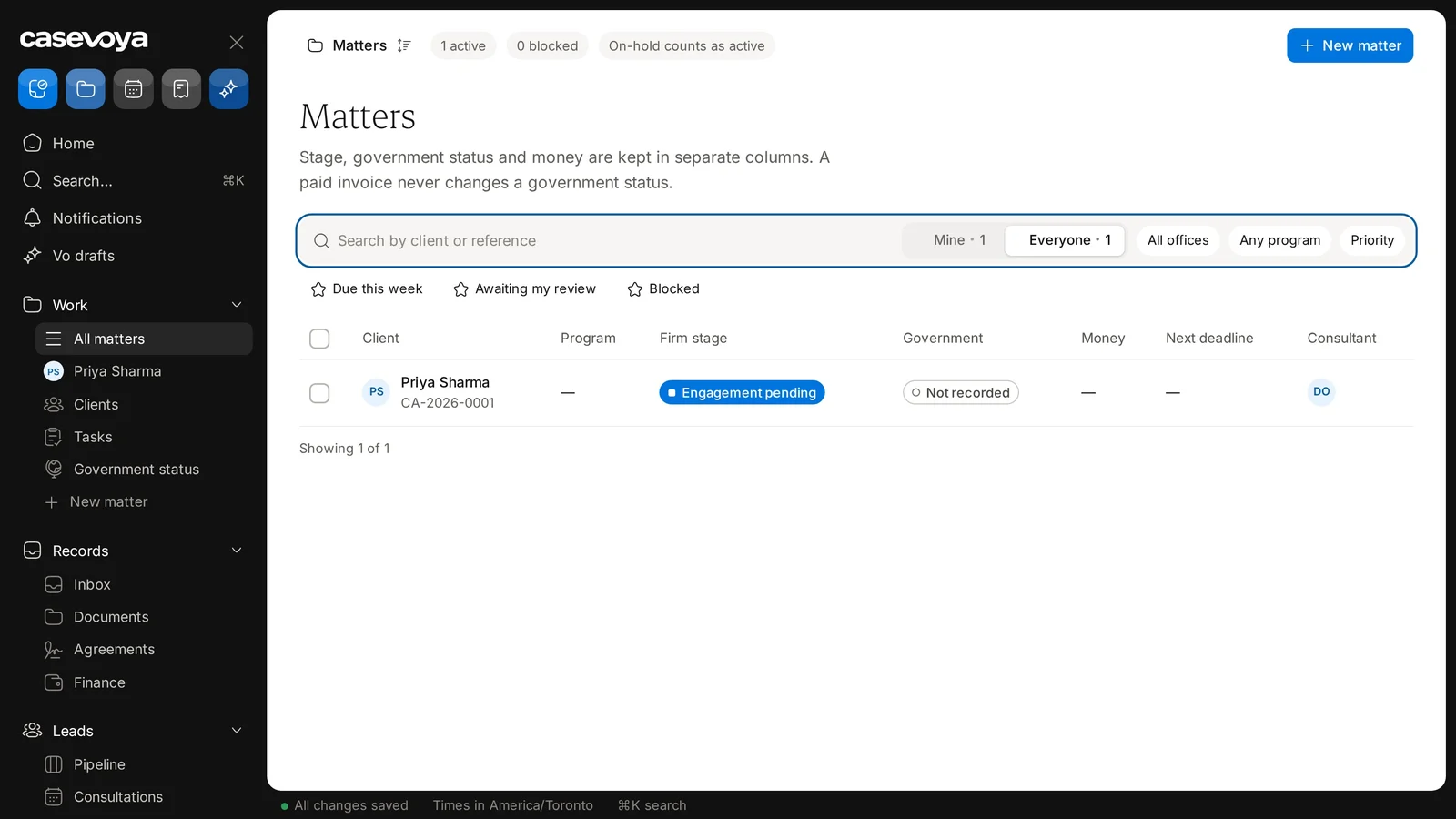
At the top, status chips give a quick count: one active and zero blocked. On-hold matters count as active.
04Search
To find a specific matter, type a client name in the search box, then clear it to see everything again.
05Filter
Switch between Mine and Everyone, each showing one here. Then narrow the list with All offices, Any program, and the Priority option.
06Quick links
Just below are quick links: Due this week, Awaiting my review, and Blocked.
07Columns
Each row shows client, program, firm stage, government status, money, next deadline, and consultant. Stage, government status, and money are tracked independently. A paid invoice never changes a government status.
08Sample row
In this fictional sample, Priya Sharma, reference CA-2026-0001, is at Engagement pending, with government status Not recorded. Her consultant is DO, the signed-in owner. Times are in America/Toronto.
09New matter
The New matter button sits at the top right, and it also appears in the sidebar.
10Recap
To recap: find All matters under Work, check the chips, search and filter, use the quick links, and read each column. Next: the matter detail page.
Overview. Matters is a single list for tracking every matter's stage, government status, and money. Here is a quick tour.
Find it. Find All matters in the left sidebar, under Work.
Status chips. At the top, status chips give a quick count: one active and zero blocked. On-hold matters count as active.
Search. To find a specific matter, type a client name in the search box, then clear it to see everything again.
Filter. Switch between Mine and Everyone, each showing one here. Then narrow the list with All offices, Any program, and the Priority option.
Quick links. Just below are quick links: Due this week, Awaiting my review, and Blocked.
Columns. Each row shows client, program, firm stage, government status, money, next deadline, and consultant. Stage, government status, and money are tracked independently. A paid invoice never changes a government status.
Sample row. In this fictional sample, Priya Sharma, reference CA-2026-0001, is at Engagement pending, with government status Not recorded. Her consultant is DO, the signed-in owner. Times are in America/Toronto.
New matter. The New matter button sits at the top right, and it also appears in the sidebar.
Recap. To recap: find All matters under Work, check the chips, search and filter, use the quick links, and read each column. Next: the matter detail page.
 Casevoya