Firm settings and branding

Firm is where you check your organization's core details, key contacts, and email intake address. Here is a quick tour.

1:18 video·Captions and transcript·2 written guides

01Overview
0:00 / 1:18

Chapters

10

Set up your firm workspace

Create the workspace your team and clients will use, then prove it works with a sample case before inviting anyone real.

  1. 1

    Start a trial

    Enter your name, work email and firm name, then your CICC licence number and class, and a password. No card is needed for the 14-day trial.

  2. 2

    Confirm your email

    Casevoya emails a six-digit code that works for 15 minutes. Type it in to confirm your address.

  3. 3

    Choose how to start

    Explore with sample data gives you a fictional firm with one sponsorship case. Pilot with real clients is for live work. You can switch later.

  4. 4

    Turn on two-step sign-in

    Scan the code with your authenticator app, enter the six-digit code and save your recovery codes. Every staff account needs it.

  5. 5

    Confirm your firm details

    Check your firm’s details. You can finish the rest later in Settings.

  6. 6

    Practise on the sample case

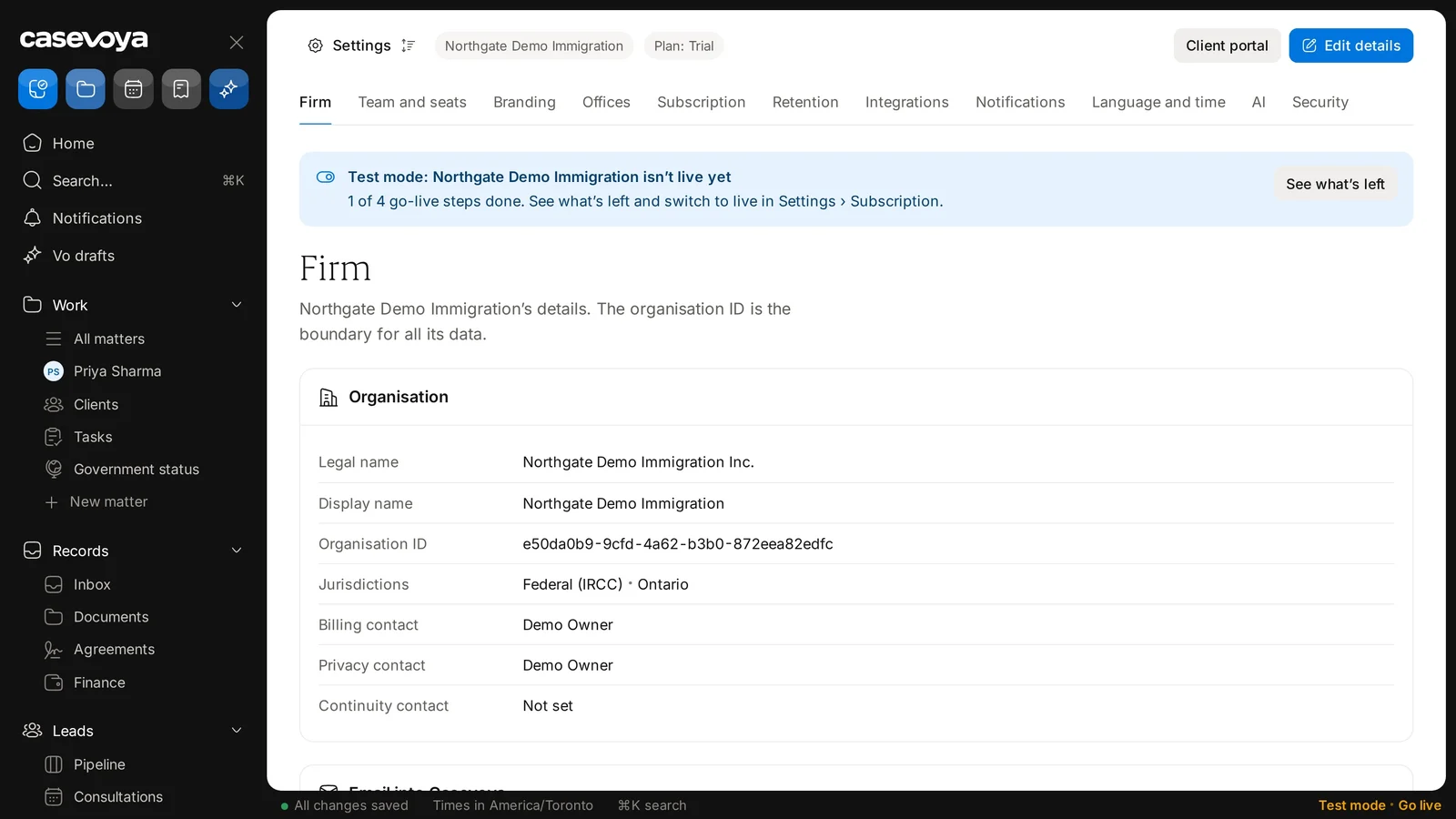
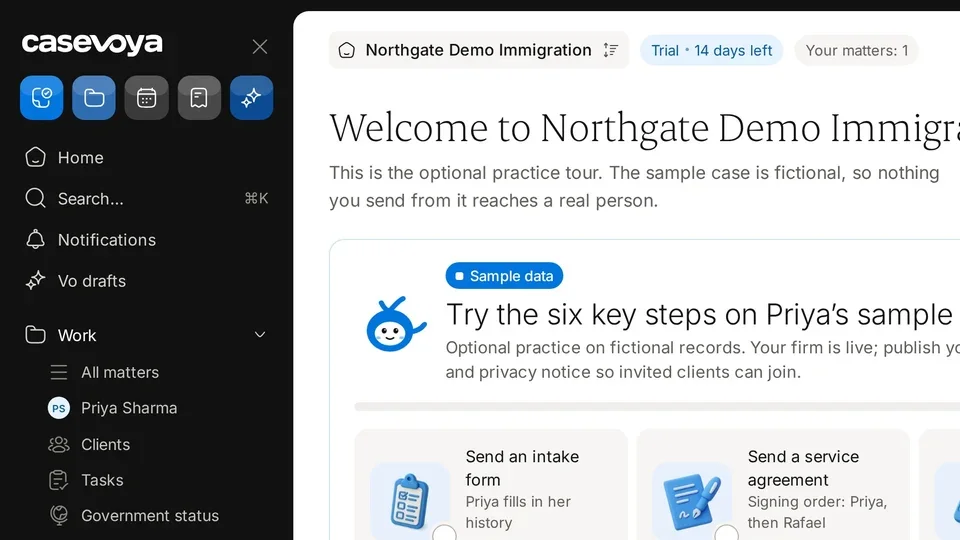
    Your dashboard opens with first steps to try on the fictional sample case, Priya Sharma. Nothing you send from it reaches a real person.
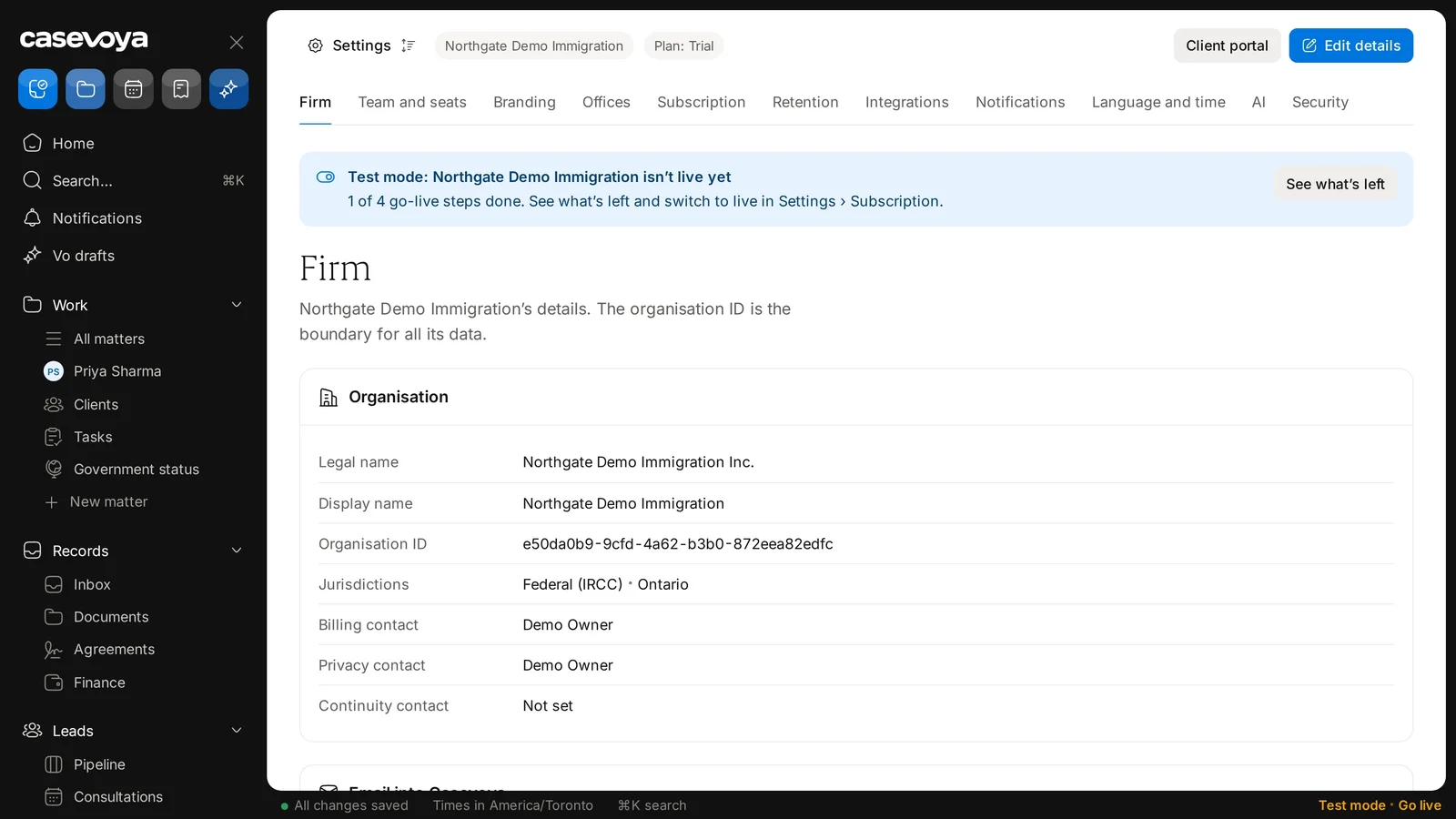
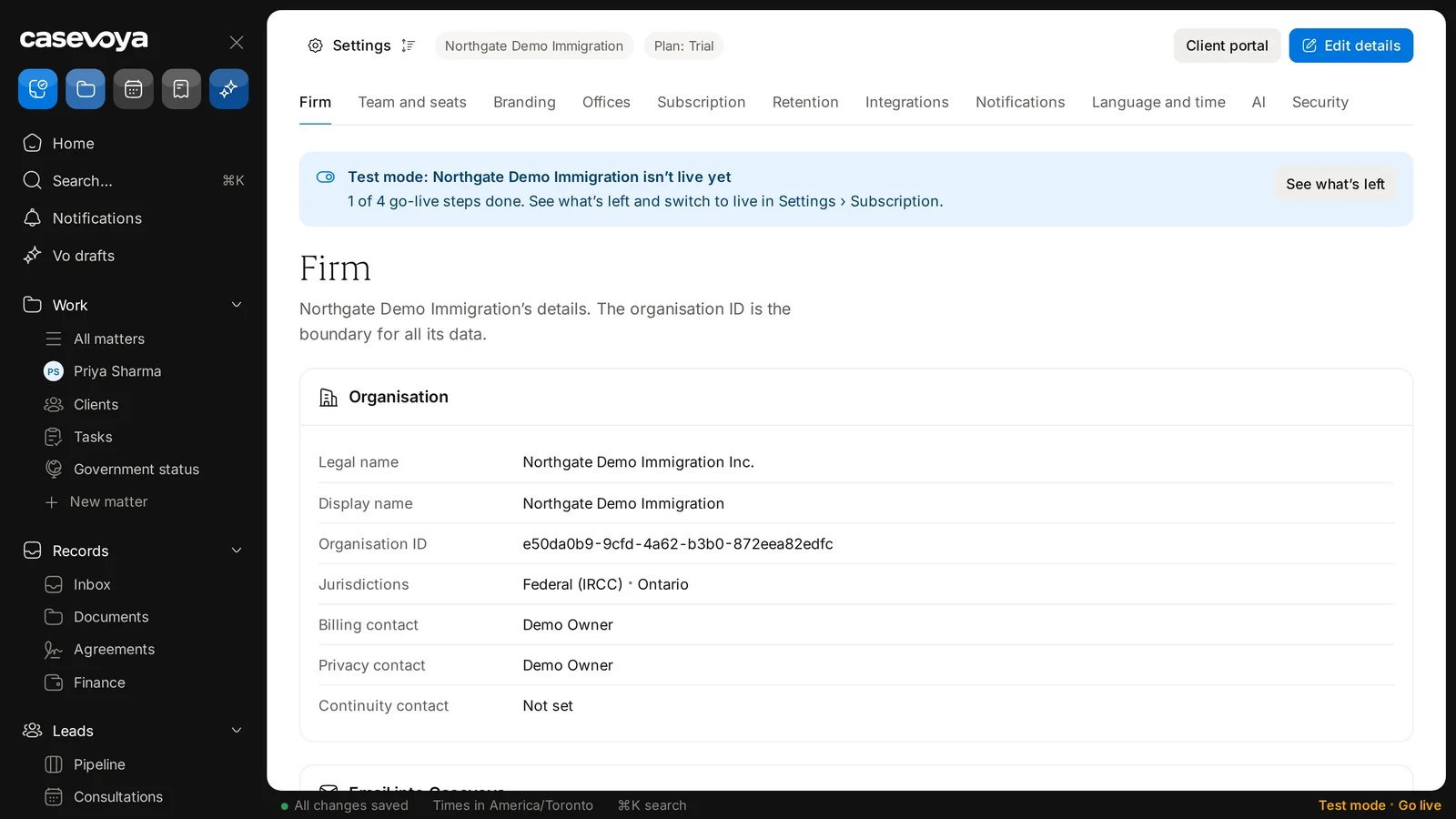
The Test mode banner in Settings › Firm, with 1 of 4 go-live steps done. Sample data.
The Organisation card: legal name, display name, organisation ID and jurisdictions. Sample data.

Add your branding, calendar and payment destination

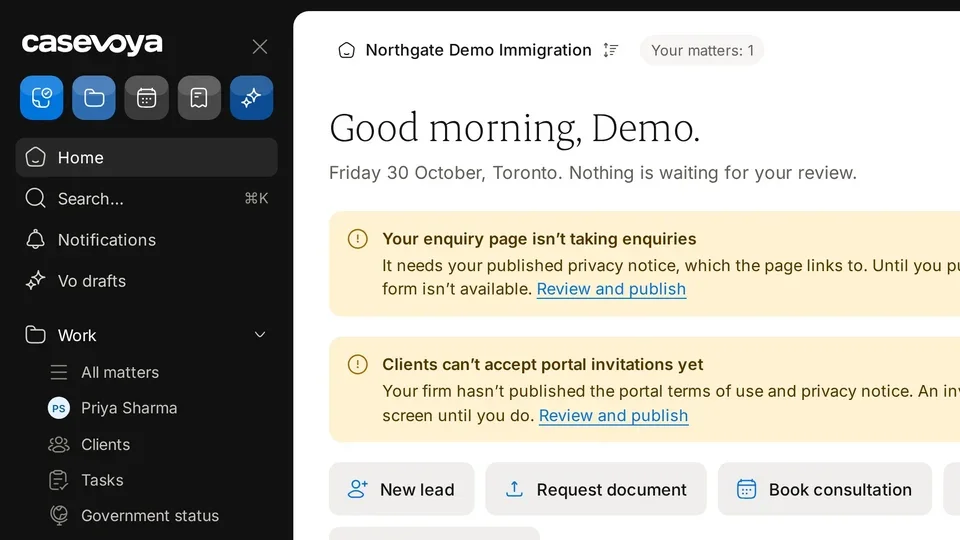
Clients see your firm, not ours. Set your logo and colours, connect the calendar you book from, and say where payments go.

  1. 1

    Branding

    Go to Practice › Settings and open Branding. Public pages show “Powered by Casevoya” in small type only.

  2. 2

    Calendar

    Go to Leads › Calendar. Under Connected calendars, each consultant shows Not connected until they connect one.

  3. 3

    Payment destination

    Connect your firm’s own payment account for earned fees. Money goes to your firm, never to Casevoya.

  4. 4

    Client account details

    For advance payments, enter your client (trust) bank account. It’s used for manual transfers and shown on requests.

Settings tabs, with Branding after Firm and Team and seats.

Screen by screen

Each frame comes from the walkthrough, with the part being explained outlined. Select a frame to play from that moment.

  1. 02Settings tabs

    Firm is the first tab in Settings, followed by Team and seats, Branding, Offices, and more, through to Security.

  2. 03Test mode

    A banner says this firm is in test mode, with 1 of 4 go-live steps done. Use See what's left, or switch to live in Settings, Subscription.

  3. 04Data boundary

    Under the heading, the page explains that the organisation ID is the boundary for all its data.

  4. 05Organisation

    The Organisation card lists the legal name, display name, organisation ID, and jurisdictions: Federal IRCC and Ontario.

  5. 06Contacts

    In this fictional demo firm, Demo Owner is both the billing and privacy contact. The continuity contact is Not set.

  6. 07Email intake

    The Email into Casevoya card gives the firm an address with a Copy button. Mail sent or forwarded there lands in Inbox, under Email to triage. Senders get no automatic reply.

  7. 08Header actions

    Edit details and Client portal sit at the top right.

  8. 09Footer

    The footer confirms All changes saved, notes times in America/Toronto, and offers Go live.

  9. 10Recap

    So: browse the Settings tabs, check test mode, review organization details, confirm contacts, and copy the intake address. Next: Subscription.

Did this answer your question?

More in Getting started