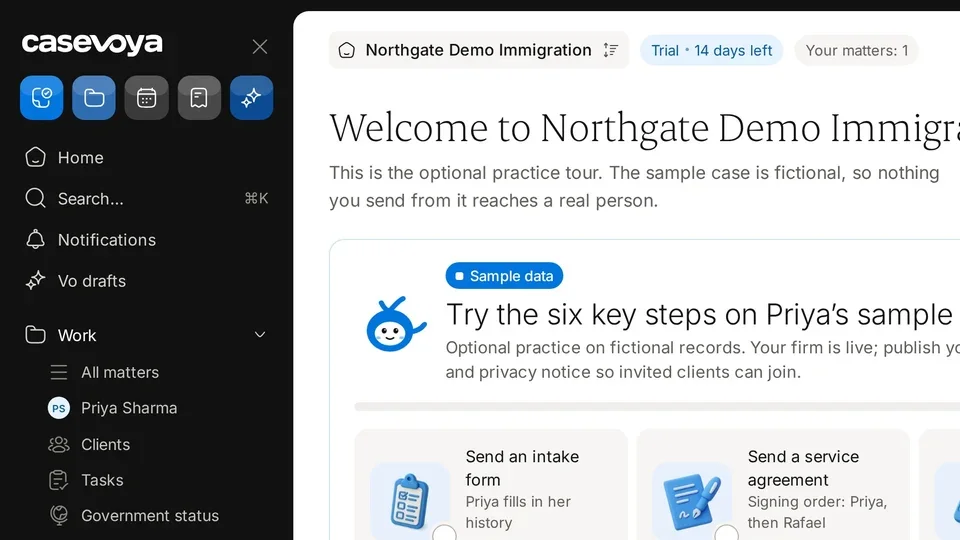
Roles and permissions

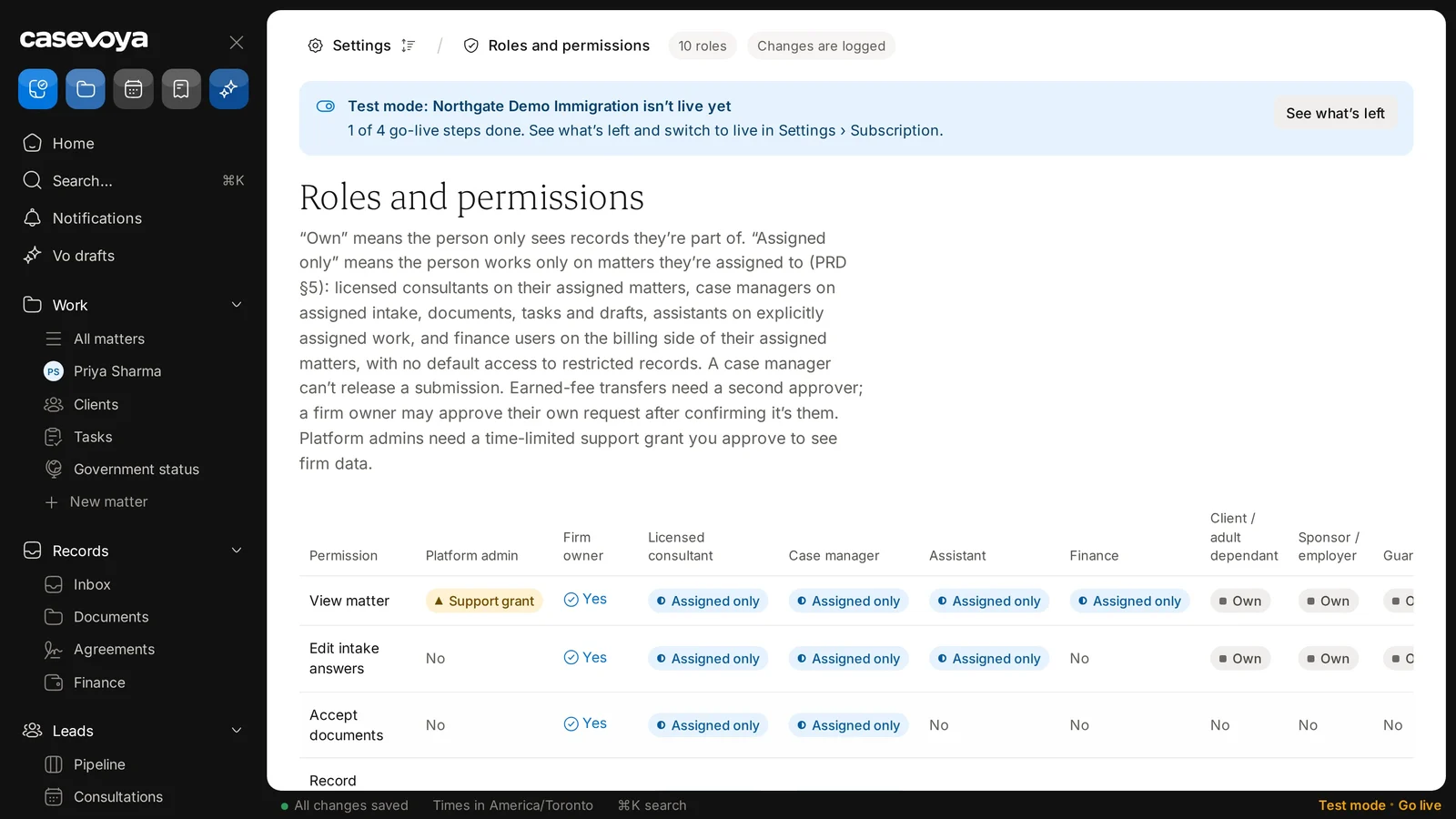
Roles and permissions shows, in one grid, what each of the firm's roles can see and do. This tour covers it from top to bottom.

1:10 video·Captions and transcript·1 written guide

01Overview
0:00 / 1:10

Chapters

9

Invite your team and choose roles

Invite staff by email and give each person only the access their job needs. Clients and family members never take up staff seats.

  1. 1

    Open People and invitations

    In the sidebar, under Practice, choose People and invitations. On the Staff tab, select Invite staff.

  2. 2

    Add their email and a role

    Owner, licensed consultant, case manager, finance or reception. You can narrow access further by office or team.

  3. 3

    Send the invitation

    It works once and expires after 7 days. If it expires, send a new one.

  4. 4

    They accept and set up two-step sign-in

    Until they do, they can’t open any client record.

  5. 5

    Check the record

    Each invitation shows its status, such as Accepted, and whether Two-step is on. Changes are kept in the firm’s audit log.
Use Invite staff on Settings › People and invitations. Sample data.
A staff member’s invitation status and two-step sign-in. Sample data.

Screen by screen

Each frame comes from the walkthrough, with the part being explained outlined. Select a frame to play from that moment.

  1. 02Find it

    You're in Settings, on Roles and permissions. One chip shows 10 roles, and another says changes are logged.

  2. 03Test mode

    The banner says this fictional demo firm isn't live yet, with 1 of 4 go-live steps done.

  3. 04Key terms

    The intro defines two terms. Own means a person sees only records they're part of. Assigned only means access to work on assigned matters, within each role's scope.

  4. 05Role columns

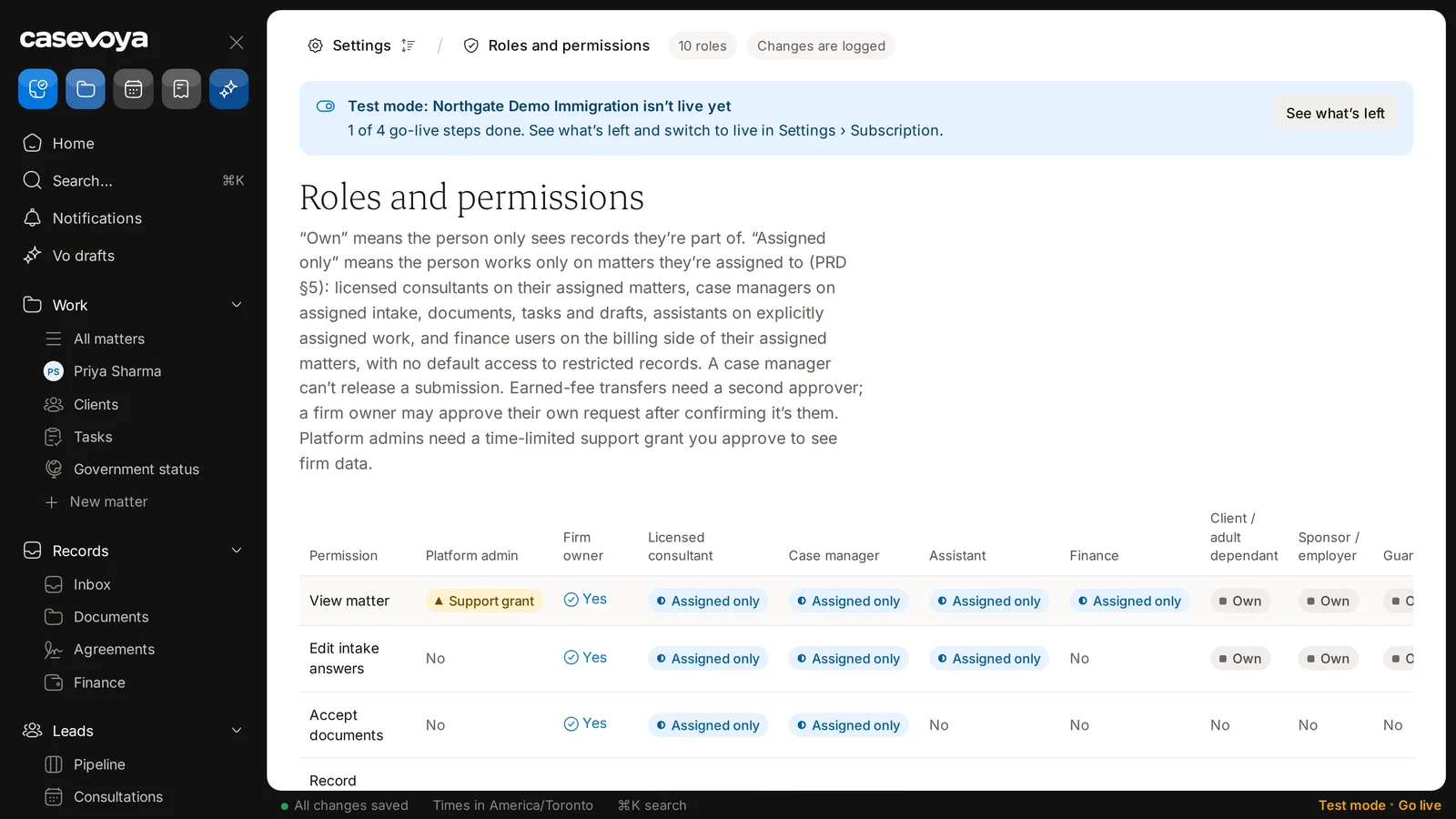
    Each column after Permission is a role, from Platform admin and Firm owner through Client and Sponsor or employer, with more to the right.

  5. 06Read a row

    Each row is a permission. On View matter, the firm owner has Yes; licensed consultants, case managers, assistants and finance have Assigned only; and clients and sponsors have Own.

  6. 07Firm owner

    Down the Firm owner column, every visible row says Yes. Platform admins get View matter only with a support grant.

  7. 08Approval rules

    Under the approval rules, a case manager can't release a submission, and earned-fee transfers need a second approver.

  8. 09Recap

    So: find it in Settings, know own versus assigned only, read roles across, check approval rules, and remember changes are logged. Next: Access grants.

Did this answer your question?

More in Getting started