Privacy requests lets your firm record and track requests from people to see or correct their personal information. Here is a quick tour.
1:13 video·Captions and transcript·1 written guide
01Overview
0:00 / 1:13
Chapters
9
Respond to a client access request
When a client asks for a copy of their personal information, Casevoya assembles it and keeps a record of how you responded.
1
Log the request
Go to Compliance › Privacy requests and select Record a request. Note who asked, when, and how you confirmed their identity.
2
Generate the package
We collect their records and leave out other adults’ private information.
3
Review it
A reviewer checks the package before it goes out.
4
Deliver it
Send it securely. The delivery and reviewer are recorded.
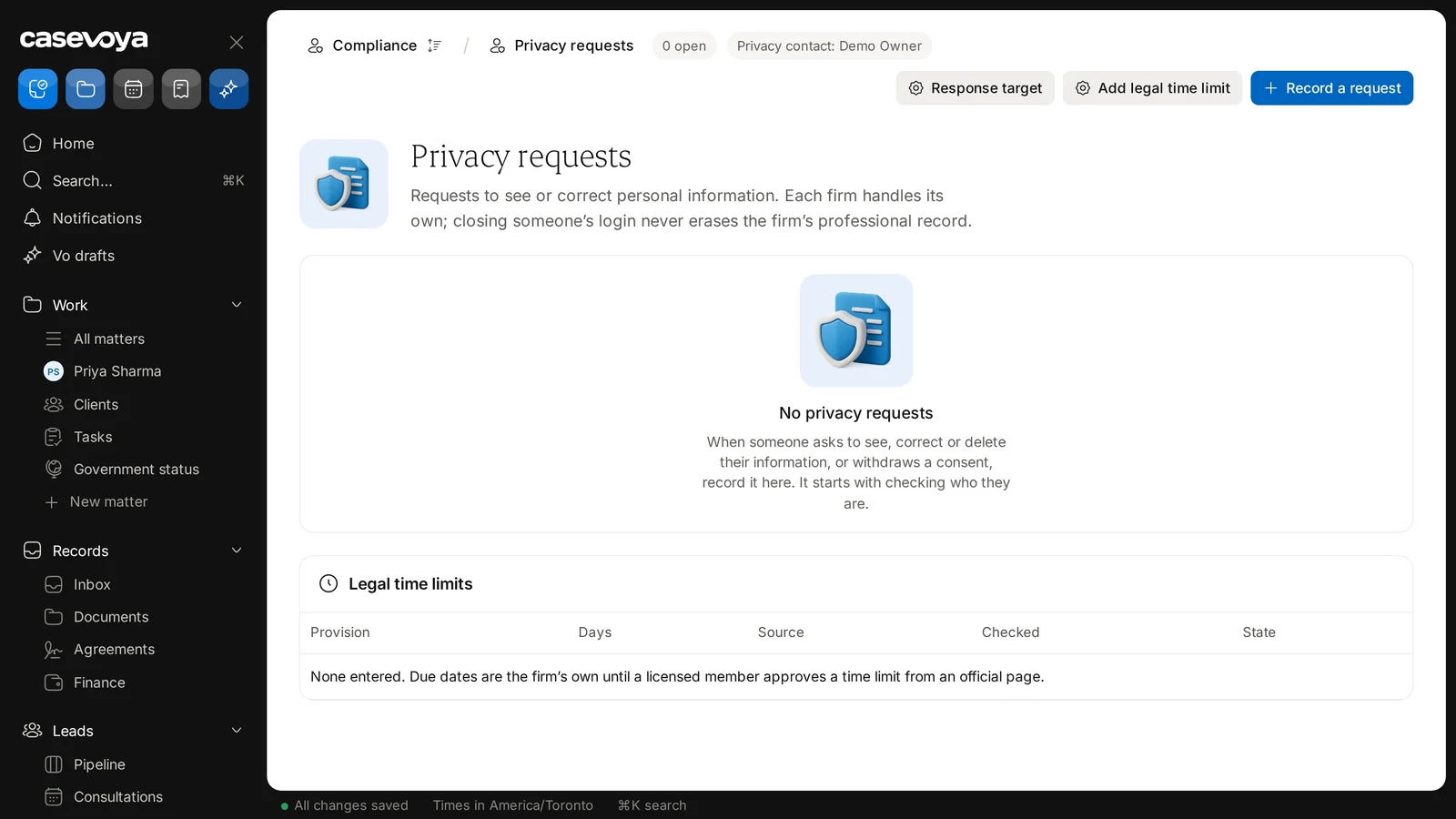
Record a request, at the top right of Privacy requests.
Response target sets the firm’s own due-date goal.
Screen by screen
Each frame comes from the walkthrough, with the part being explained outlined. Select a frame to play from that moment.
02Breadcrumb
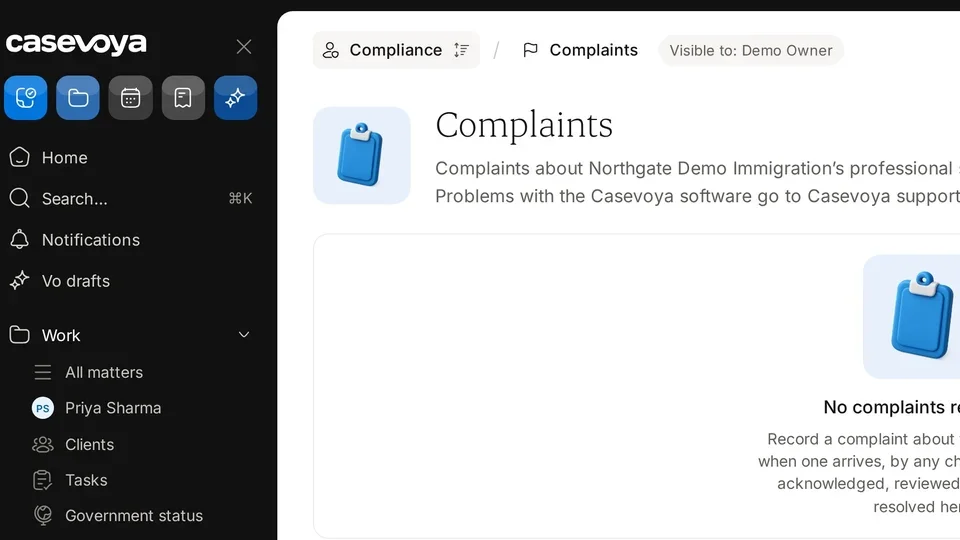
You reach it from Compliance, which appears just before Privacy requests in the header breadcrumb.
03Top buttons
A chip shows 0 open requests. Another names the privacy contact, Demo Owner, a fictional demo user.
04Test mode
The description covers requests to see or correct personal information. Each firm handles its own, and closing someone's login never erases the firm's professional record.
05Purpose
When someone makes a request, use Record a request at the top right. The process starts with verifying who they are.
06Empty state
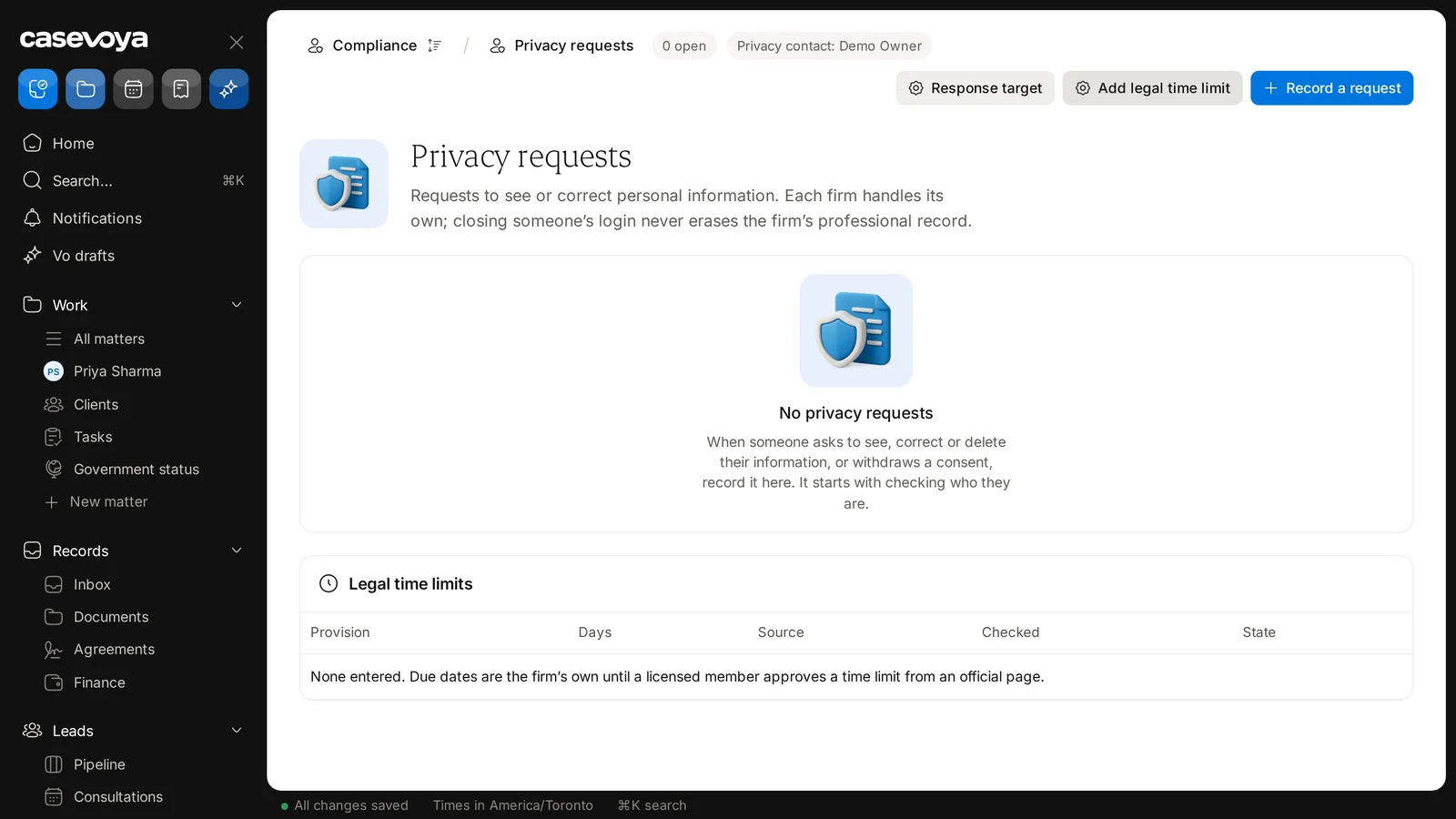
Beside it, Response target sets the firm's own due-date goal, and Add legal time limit enters a provision from an official page.
07Time limits
Below, the Legal time limits table has columns for provision, days, source, checked, and state.
08None entered
The note reads: None entered. Due dates are the firm's own until a licensed member approves a time limit from an official page.
09Recap
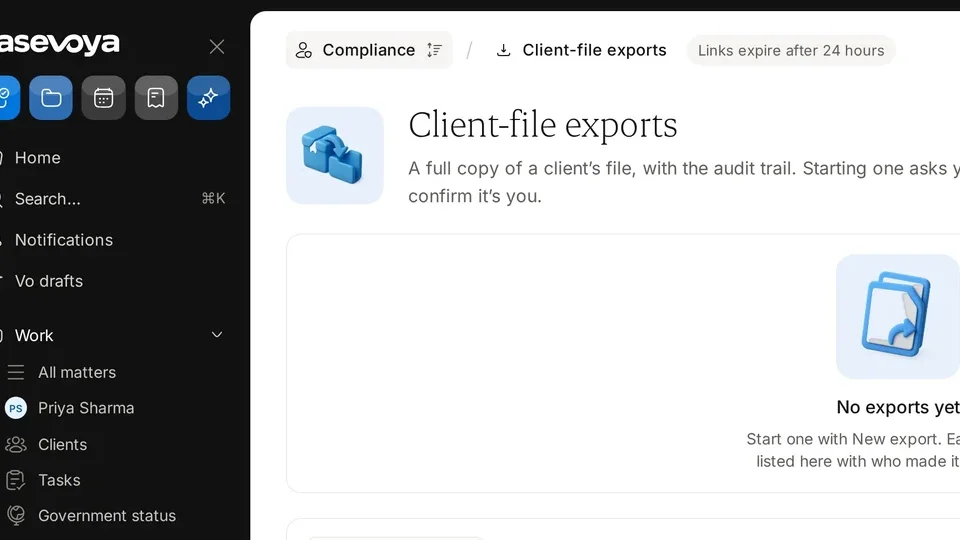
So: find it under Compliance, watch the open count, record requests, set targets, and review time limits. Next: Client-file exports.
Overview. Privacy requests lets your firm record and track requests from people to see or correct their personal information. Here is a quick tour.
Breadcrumb. You reach it from Compliance, which appears just before Privacy requests in the header breadcrumb.
Top buttons. A chip shows 0 open requests. Another names the privacy contact, Demo Owner, a fictional demo user.
Test mode. The description covers requests to see or correct personal information. Each firm handles its own, and closing someone's login never erases the firm's professional record.
Purpose. When someone makes a request, use Record a request at the top right. The process starts with verifying who they are.
Empty state. Beside it, Response target sets the firm's own due-date goal, and Add legal time limit enters a provision from an official page.
Time limits. Below, the Legal time limits table has columns for provision, days, source, checked, and state.
None entered. The note reads: None entered. Due dates are the firm's own until a licensed member approves a time limit from an official page.
Recap. So: find it under Compliance, watch the open count, record requests, set targets, and review time limits. Next: Client-file exports.
 Casevoya