Notifications gathers activity on your matters into one feed, so nothing slips past you. Here is a quick tour.
1:15 video·Captions and transcript·1 written guide
01Overview
0:00 / 1:15
Chapters
10
Review and clear your notifications
Notifications gathers activity on your matters into one feed grouped by day, so nothing slips past you.
1
Open Notifications
Select Notifications in the sidebar. The badge shows the unread count.
2
Filter the feed
Choose All, Mentions or System.
3
Clear unread items
Select Mark all read at the top right.
4
Set email preferences
Use the Settings link under the heading to choose what reaches you by email.
Screen by screen
Each frame comes from the walkthrough, with the part being explained outlined. Select a frame to play from that moment.
02Unread count
The header reads Notifications, and the badge beside it shows 0 unread right now.
03Mark all read
When unread items pile up, Mark all read at the top right clears them. With 0 unread, there is nothing to clear today.
04Filter tabs
Three tabs filter the feed: All, Mentions, and System.
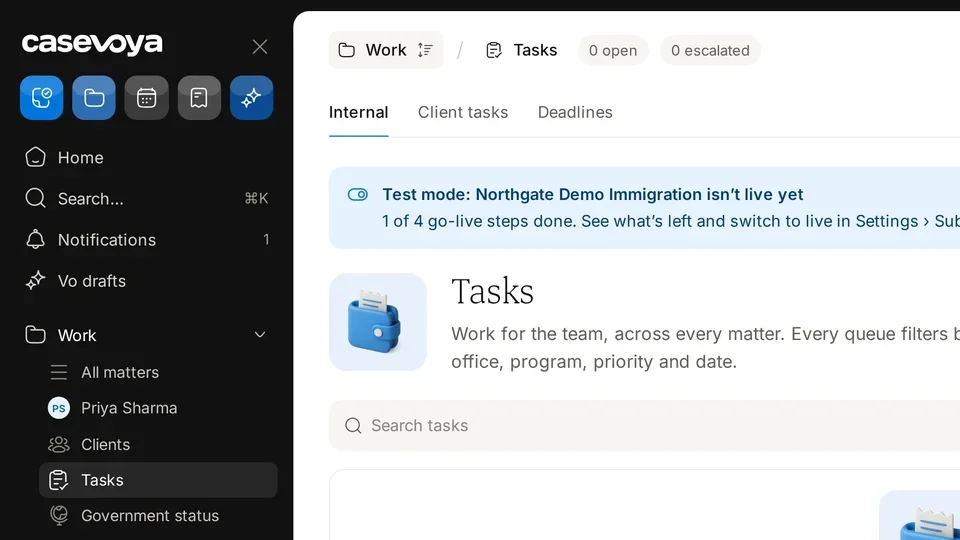
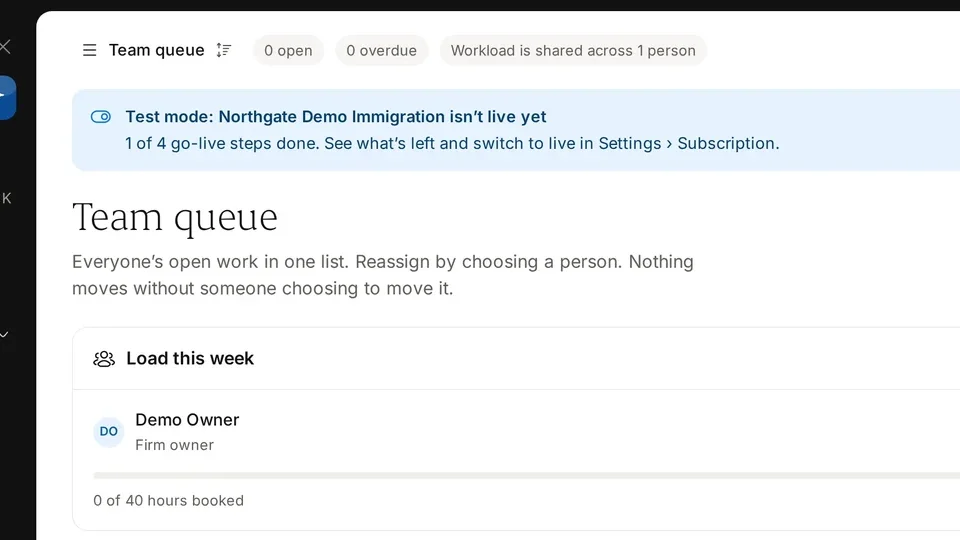
05Test mode
A banner notes that this firm is in test mode and isn't live yet, with 1 of 4 go-live steps done.
06Go-live steps
Use See what's left to review the remaining steps, then switch to live in Settings, Subscription.
07Email choices
Below the heading, the feed is grouped by day, and the Settings link lets you choose what reaches you by email.
08Empty state
Right now you're all caught up. New client messages, uploads, payments, bookings and deadline reminders on your matters appear here.
09Status bar
At the bottom, the status bar shows All changes saved, times in America/Toronto, and a Test mode, Go live link.
10Recap
So: check the unread count, filter with the tabs, finish the go-live steps, set email preferences in Settings, and watch the status bar. Next: Settings.
Overview. Notifications gathers activity on your matters into one feed, so nothing slips past you. Here is a quick tour.
Unread count. The header reads Notifications, and the badge beside it shows 0 unread right now.
Mark all read. When unread items pile up, Mark all read at the top right clears them. With 0 unread, there is nothing to clear today.
Filter tabs. Three tabs filter the feed: All, Mentions, and System.
Test mode. A banner notes that this firm is in test mode and isn't live yet, with 1 of 4 go-live steps done.
Go-live steps. Use See what's left to review the remaining steps, then switch to live in Settings, Subscription.
Email choices. Below the heading, the feed is grouped by day, and the Settings link lets you choose what reaches you by email.
Empty state. Right now you're all caught up. New client messages, uploads, payments, bookings and deadline reminders on your matters appear here.
Status bar. At the bottom, the status bar shows All changes saved, times in America/Toronto, and a Test mode, Go live link.
Recap. So: check the unread count, filter with the tabs, finish the go-live steps, set email preferences in Settings, and watch the status bar. Next: Settings.
 Casevoya