Build an intake form

Intake form builder lets you design the questions clients answer before a matter starts. This tour covers it from top to bottom.

1:24 video·Captions and transcript·1 written guide

01Overview
0:00 / 1:24

Chapters

10

Embed an enquiry form on your website

Put a short enquiry form on your site, or share a hosted page with your branding. It collects only what you need for a first call.

  1. 1

    Share your enquiry form

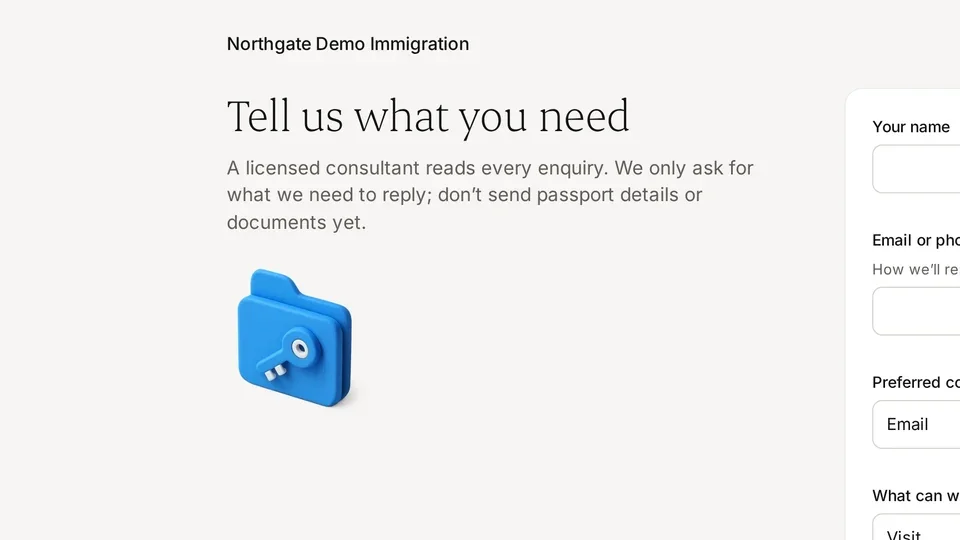
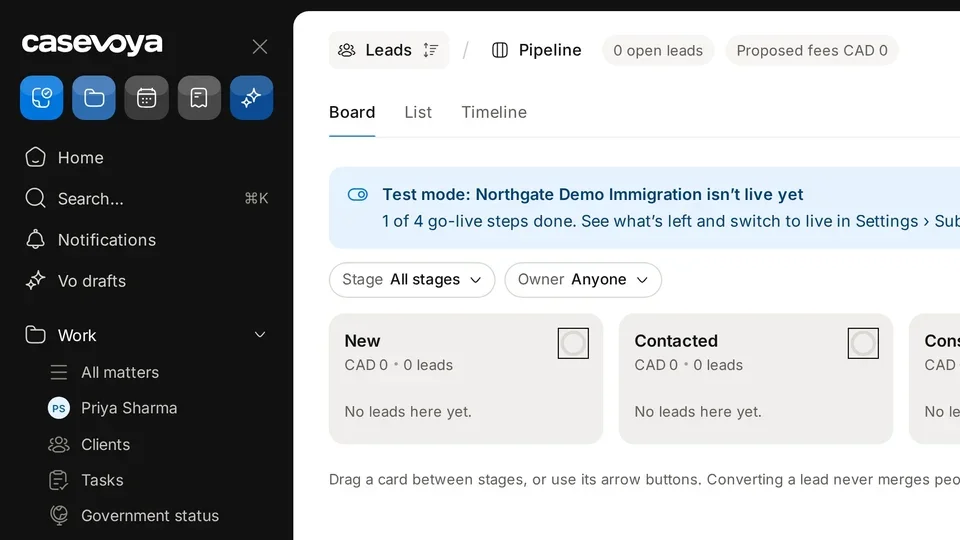
    Go to Leads › Pipeline and select Share enquiry form. The public form asks for name, email or phone, preferred contact, topic, country and an optional reply language.

  2. 2

    Consent is built in

    A required box lets you reply and records when they agreed. A separate, optional box signs them up for firm news.

  3. 3

    Copy the snippet

    Paste it into your website, or share the hosted page link.

  4. 4

    Test it

    Fill in the form and select Send enquiry. It appears as a lead in Leads › Pipeline.
The top of the enquiry form, with the firm name and a note asking prospects not to send passport details or documents yet. Sample data.
Two separate checkboxes: a required one for replies and an optional one for firm news. Sample data.

Screen by screen

Each frame comes from the walkthrough, with the part being explained outlined. Select a frame to play from that moment.

  1. 02Breadcrumb

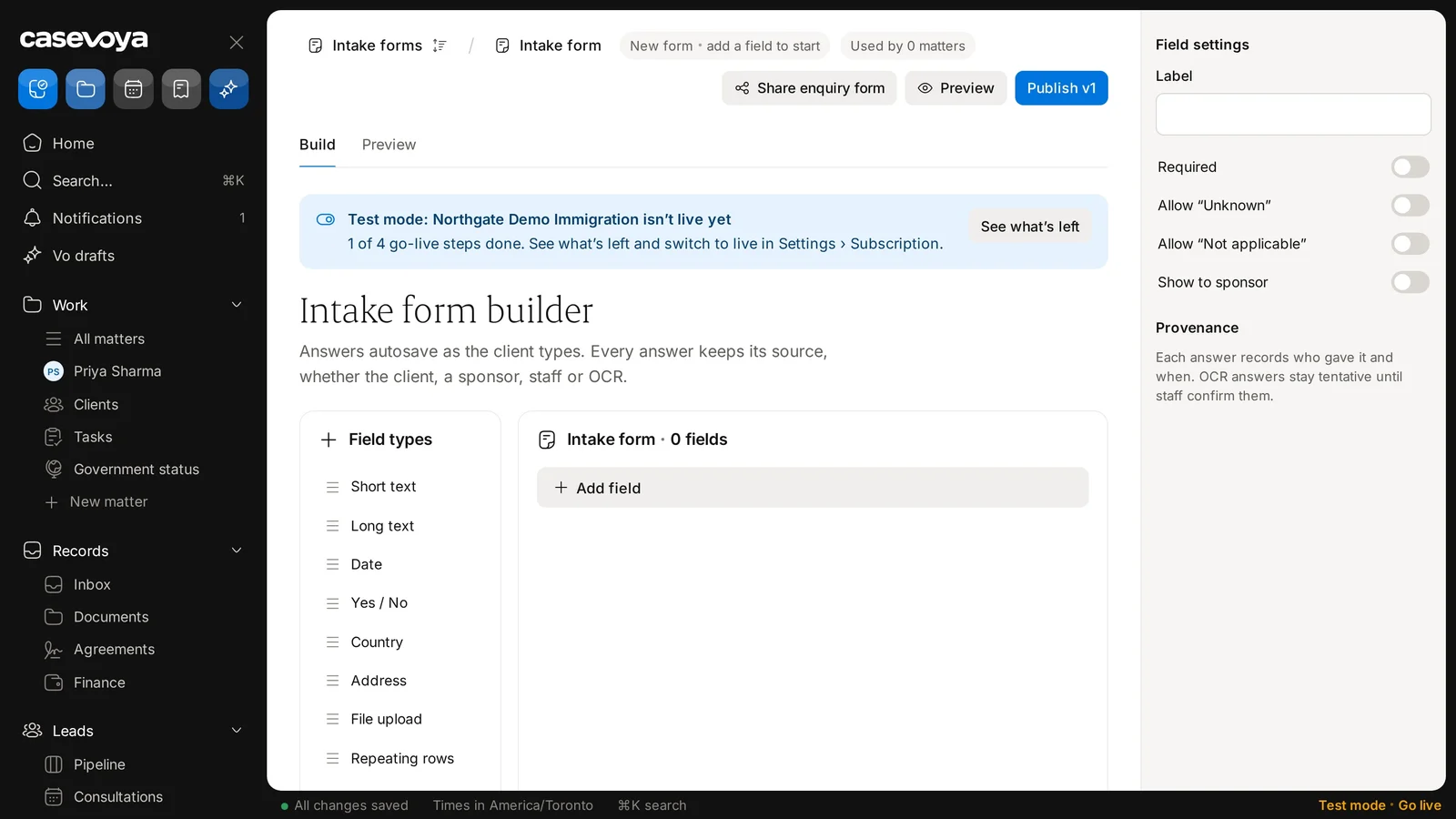
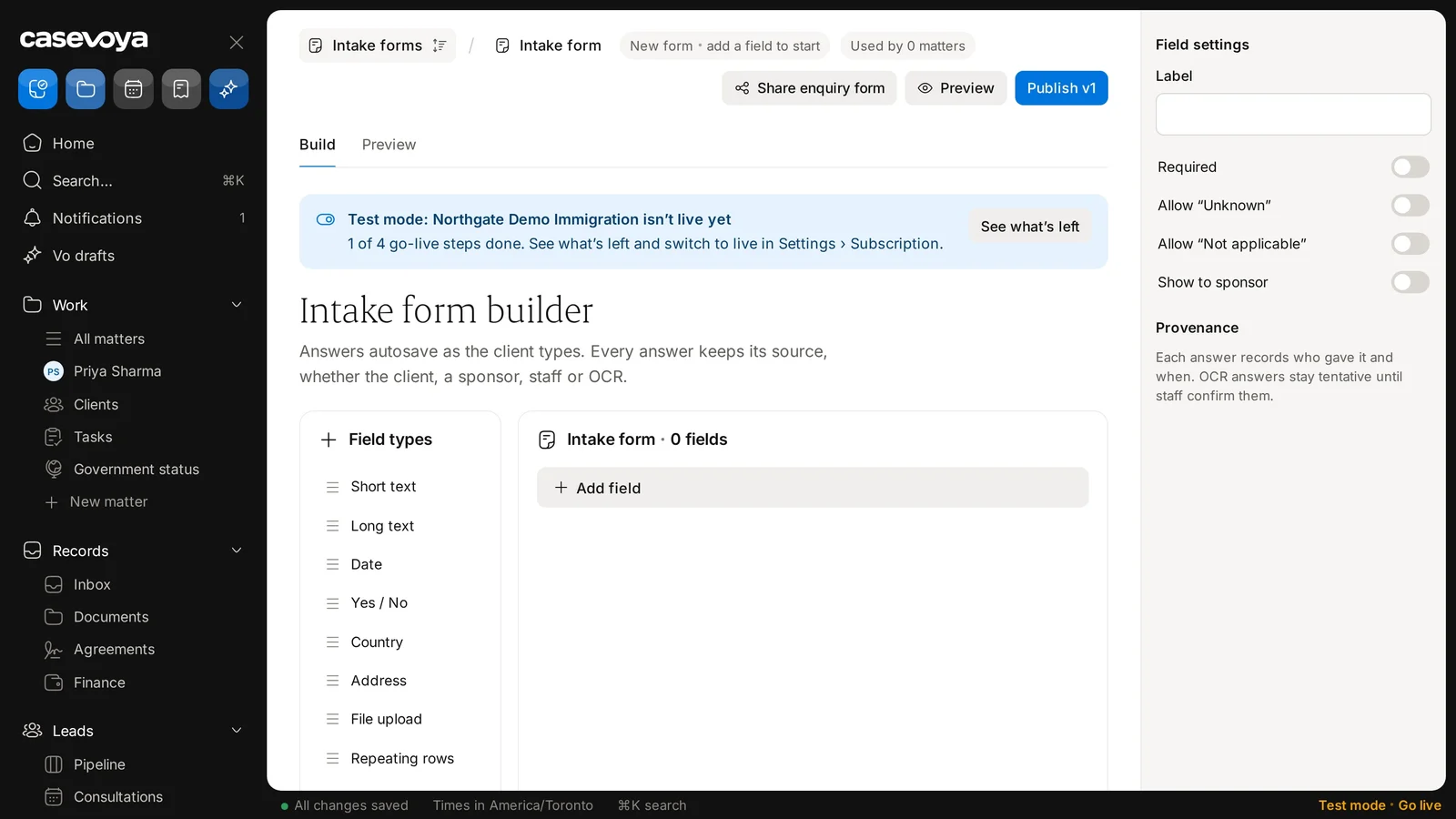
    The breadcrumb runs from Intake forms to Intake form. Chips read New form, add a field to start, and Used by 0 matters.

  2. 03Test mode

    A banner says Northgate Demo Immigration isn't live yet. Switch to live in Settings, Subscription; See what's left lists the remaining steps.

  3. 04Build tab

    The Build tab is selected, with Preview beside it. Answers autosave as the client types.

  4. 05Field types

    The Field types list offers Short text, Long text, Date, Yes / No, Country, Address, File upload, Repeating rows and Declaration.

  5. 06Add field

    The Intake form card shows 0 fields. Use Add field to start building.

  6. 07Field settings

    Once a field is added, Field settings lets you set a Label and choose Required, Allow Unknown, Not applicable, and Show to sponsor.

  7. 08Provenance

    Under Provenance, each answer records who gave it and when. OCR answers stay tentative until staff confirm them.

  8. 09Share, publish

    Back in the header, Share enquiry form, Preview, and Publish v1 put the form to work. The footer confirms All changes saved.

  9. 10Recap

    To recap: check the breadcrumb and banner, pick field types, add fields, set field settings, and publish v1. Next: Intake forms.

Did this answer your question?

More in Leads and bookings