Access grants lets you give a named person time-limited access to one matter or a set of records. Here is a quick tour.
1:08 video·Captions and transcript·1 written guide
01Overview
0:00 / 1:08
Chapters
9
Approve or revoke support access
Our support team can’t see your client records unless you approve it, for a limited time and scope.
1
Receive a request
Support asks for access to a specific matter or record set, with a reason. Find it in Practice › Access grants.
2
Approve it
Choose how long. The default is 60 minutes.
3
See what happened
Every view during the session is logged and shown to you.
4
Revoke early
End access at any time. It also ends automatically.
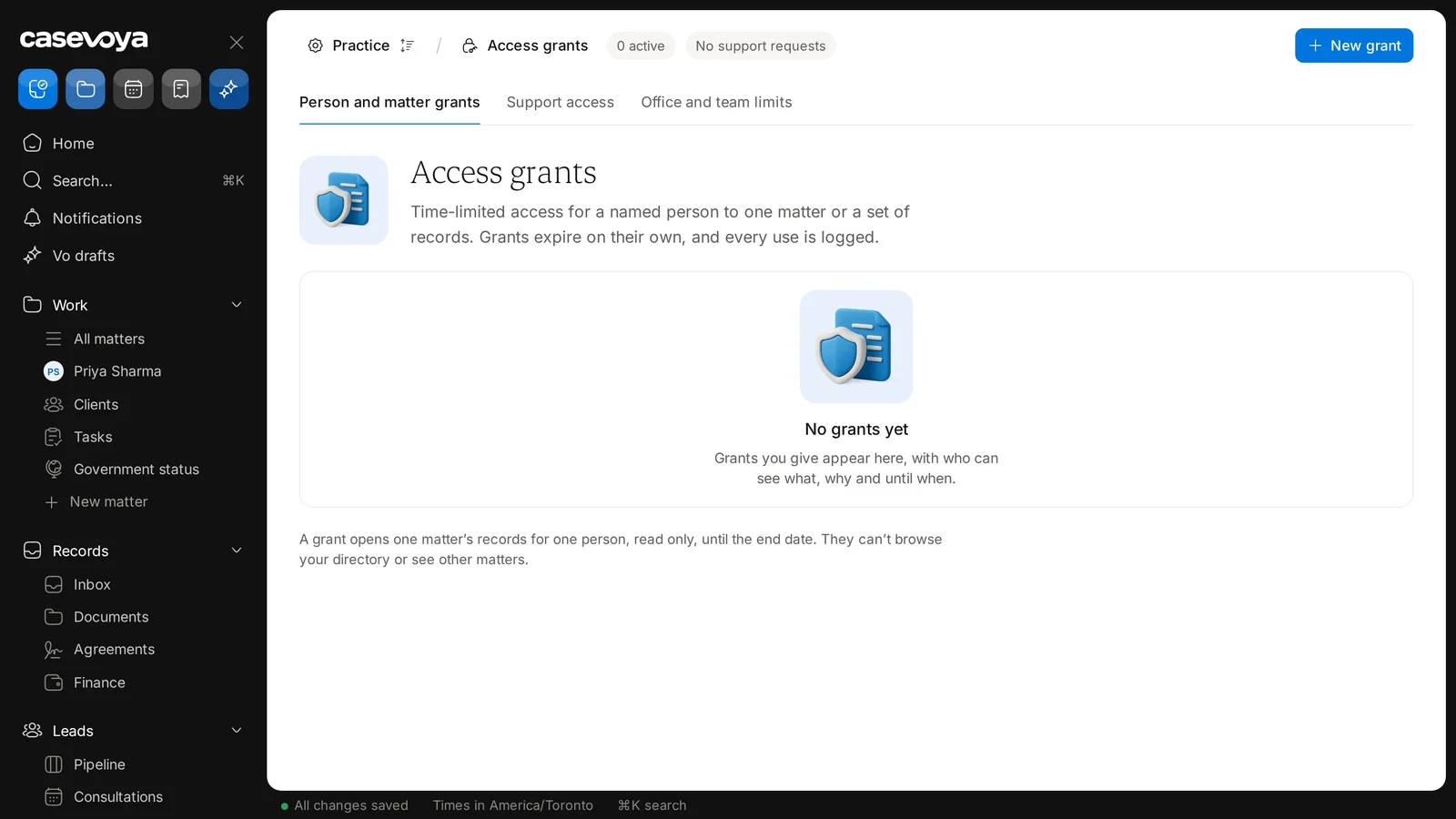
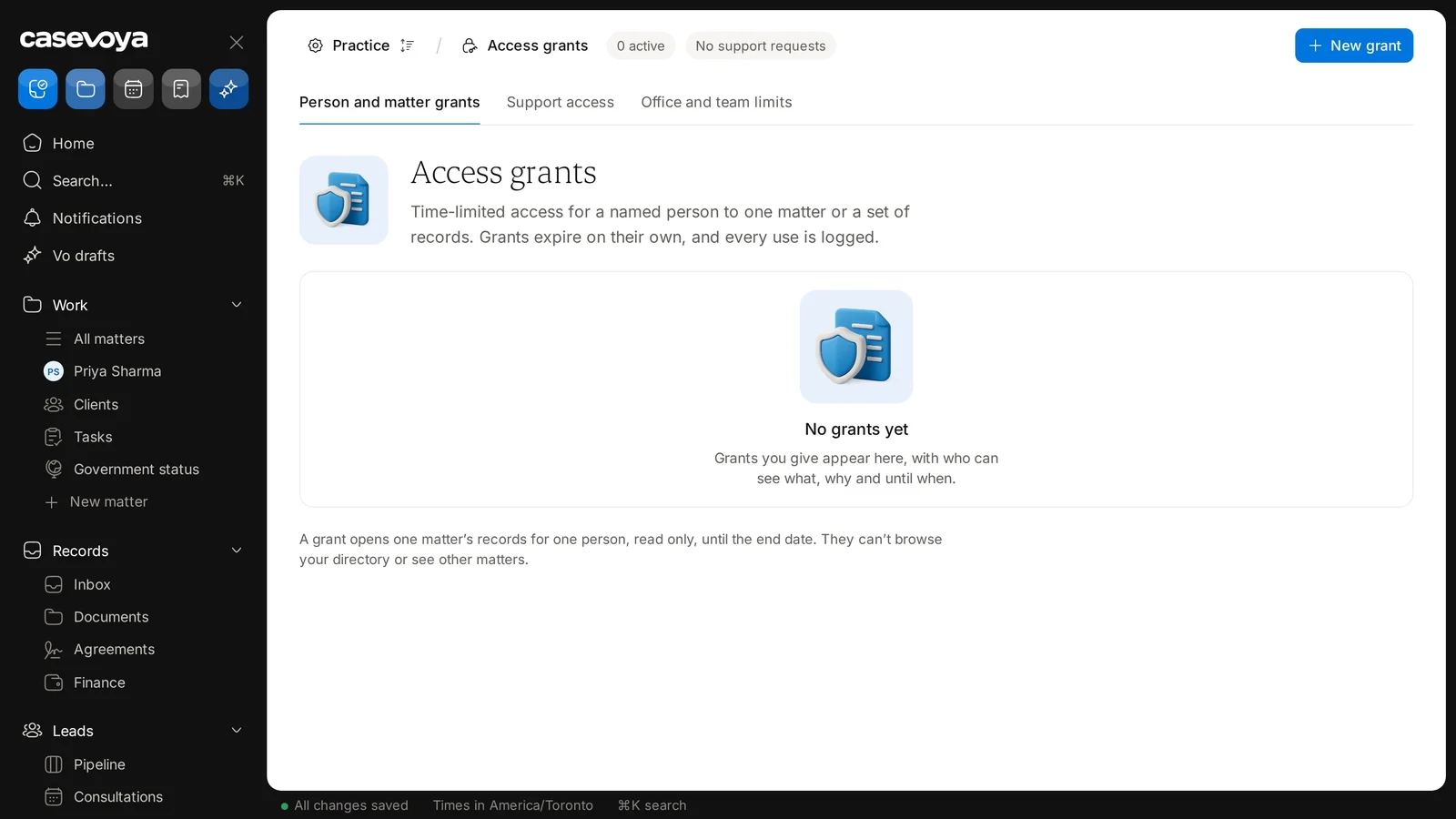
Practice › Access grants, with the Person and matter grants, Support access, and Office and team limits tabs. Sample data.
The status chips: 0 active grants and No support requests. Sample data.
Screen by screen
Each frame comes from the walkthrough, with the part being explained outlined. Select a frame to play from that moment.
02Find it
The header path reads Practice, then Access grants, showing where you are.
03Status chips
Two chips show the status: 0 active grants, and No support requests.
04Three tabs
Three tabs divide the page: Person and matter grants, which is open now, Support access, and Office and team limits.
05What a grant is
The description defines a grant: time-limited access for a named person to one matter or a set of records. Grants expire on their own, and every use is logged.
06Empty list
On this first tab, the list is empty: No grants yet. Grants you give appear here, showing who can see what, why, and until when.
07The fine print
The note below covers the single-matter case: a grant opens one matter's records to one person, read-only, until the end date. They can't browse your directory or see other matters.
08New grant
To give access, use the New grant button at the top right.
09Recap
To recap: find it under Practice, check the status chips, switch between tabs, read what a grant allows, and use New grant. Next: People and invitations.
Overview. Access grants lets you give a named person time-limited access to one matter or a set of records. Here is a quick tour.
Find it. The header path reads Practice, then Access grants, showing where you are.
Status chips. Two chips show the status: 0 active grants, and No support requests.
Three tabs. Three tabs divide the page: Person and matter grants, which is open now, Support access, and Office and team limits.
What a grant is. The description defines a grant: time-limited access for a named person to one matter or a set of records. Grants expire on their own, and every use is logged.
Empty list. On this first tab, the list is empty: No grants yet. Grants you give appear here, showing who can see what, why, and until when.
The fine print. The note below covers the single-matter case: a grant opens one matter's records to one person, read-only, until the end date. They can't browse your directory or see other matters.
New grant. To give access, use the New grant button at the top right.
Recap. To recap: find it under Practice, check the status chips, switch between tabs, read what a grant allows, and use New grant. Next: People and invitations.
 Casevoya