Your public enquiry form

The Enquiry form is the public page where prospective clients send your firm a first question. This tour walks through it.

1:20 video·Captions and transcript·1 written guide

01Overview
0:00 / 1:20

Chapters

10

Embed an enquiry form on your website

Put a short enquiry form on your site, or share a hosted page with your branding. It collects only what you need for a first call.

  1. 1

    Share your enquiry form

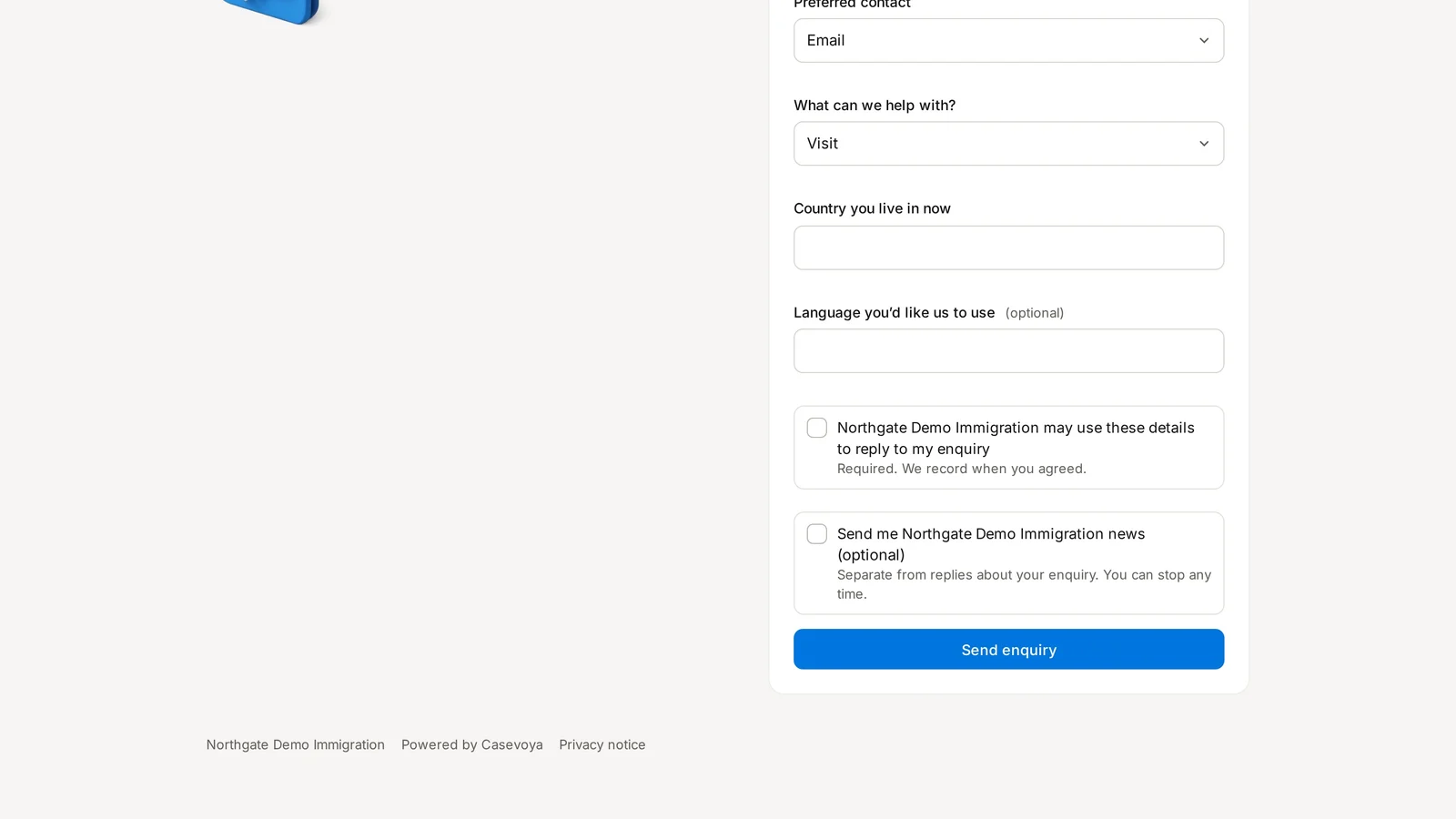
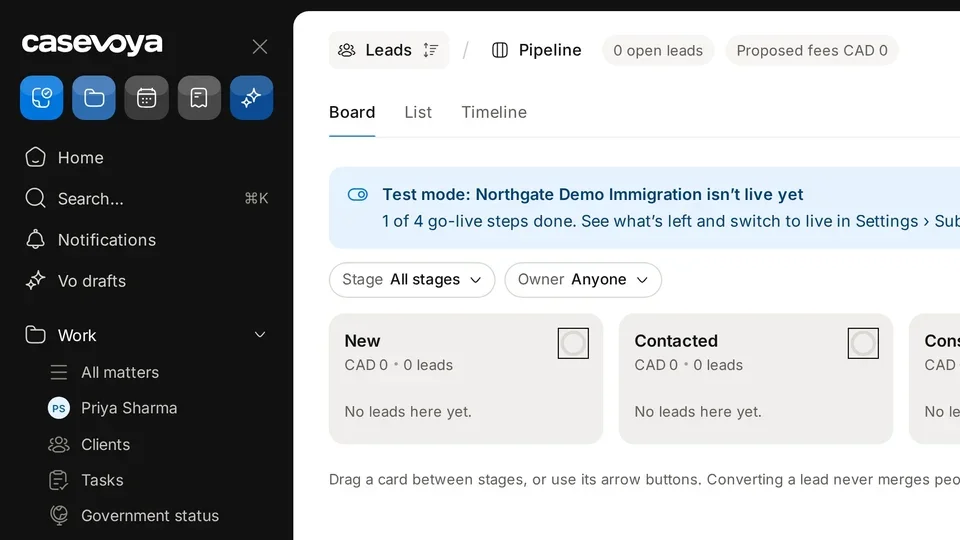
    Go to Leads › Pipeline and select Share enquiry form. The public form asks for name, email or phone, preferred contact, topic, country and an optional reply language.

  2. 2

    Consent is built in

    A required box lets you reply and records when they agreed. A separate, optional box signs them up for firm news.

  3. 3

    Copy the snippet

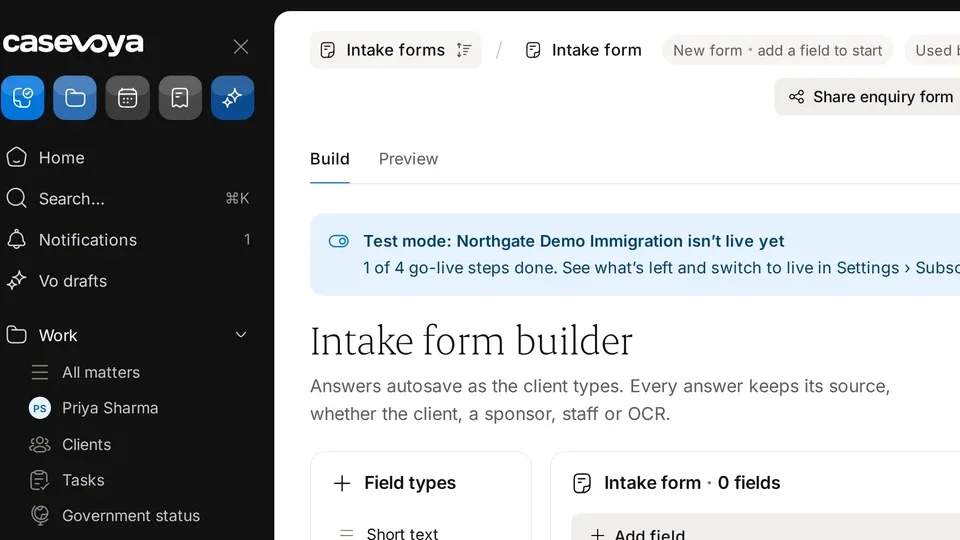
    Paste it into your website, or share the hosted page link.

  4. 4

    Test it

    Fill in the form and select Send enquiry. It appears as a lead in Leads › Pipeline.
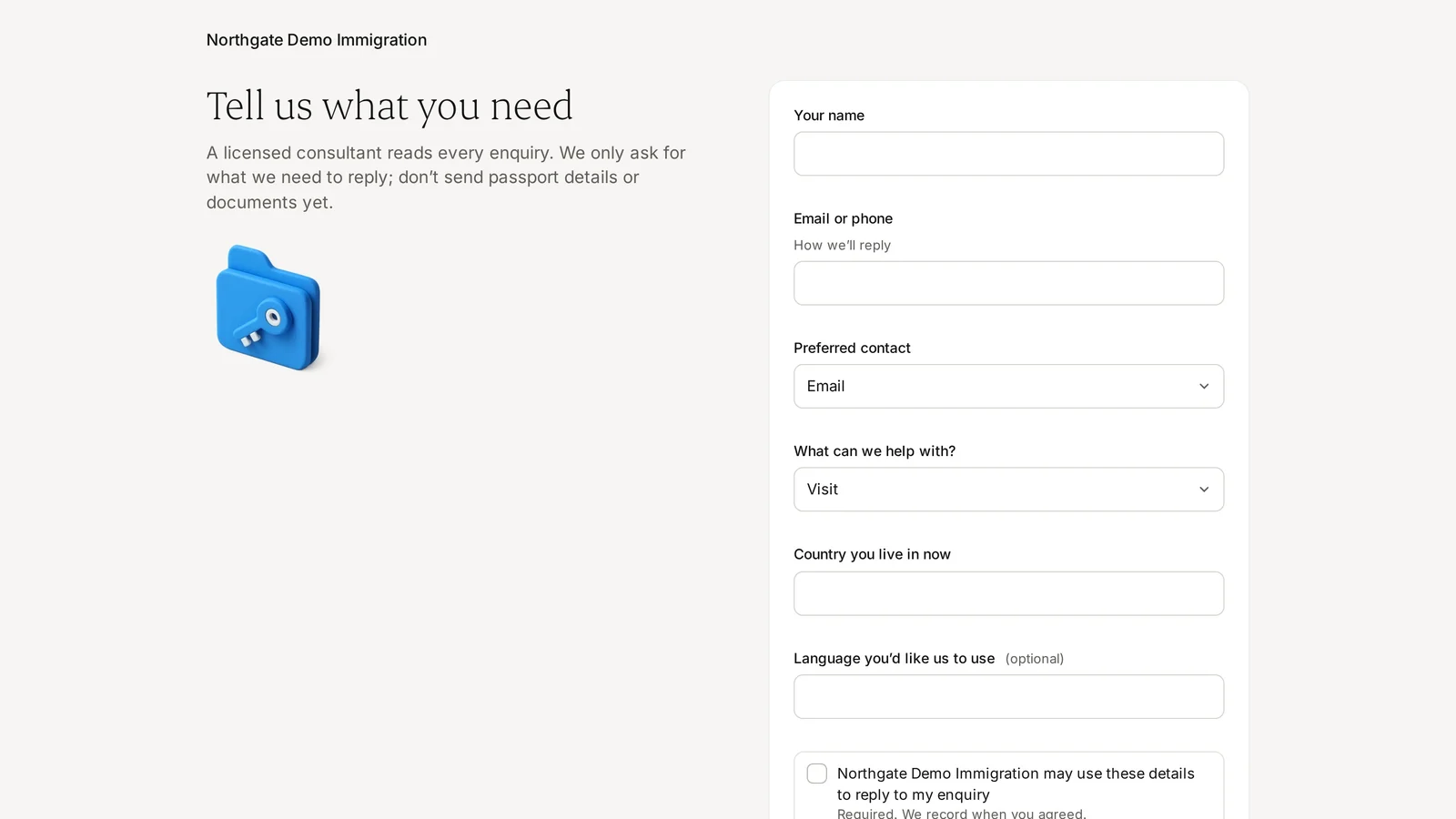
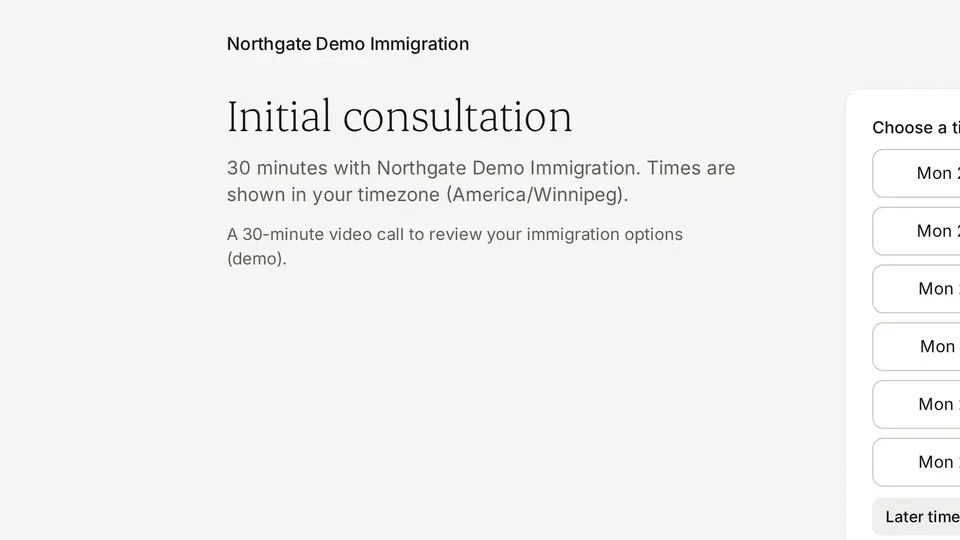
The top of the enquiry form, with the firm name and a note asking prospects not to send passport details or documents yet. Sample data.
Two separate checkboxes: a required one for replies and an optional one for firm news. Sample data.

Screen by screen

Each frame comes from the walkthrough, with the part being explained outlined. Select a frame to play from that moment.

  1. 02Firm and note

    At the top is your firm name. Its note says a licensed consultant reads every enquiry, and it asks prospects not to send passport details or documents yet.

  2. 03Name, contact

    Prospects enter their name, then an email or phone number, which is how the firm will reply.

  3. 04Contact mode

    Preferred contact defaults to Email, and the list also offers Phone.

  4. 05Topic

    What can we help with defaults to Visit, and the dropdown lists the other topics, from Study to Citizenship and Not sure.

  5. 06Country, lang

    Next come the country they currently live in and an optional language for replies.

  6. 07Consent

    A required checkbox lets the firm use these details to reply, and the firm records when they agreed. A second, optional box signs them up for firm news, which they can stop at any time.

  7. 08Send enquiry

    When everything is filled in, the Send enquiry button submits it.

  8. 09Footer

    The footer repeats the firm name, shows Powered by Casevoya and links to the Privacy notice.

  9. 10Recap

    In short: every enquiry is read and no documents are sent yet; then come name and contact details, topic and country, consent checkboxes and Send enquiry. Next: Enquiries inbox.

Did this answer your question?

More in Leads and bookings