Documents lets you review every client upload across all your matters in one queue. This tour shows how it works.
1:07 video·Captions and transcript·4 written guides
01Overview
0:00 / 1:07
Chapters
8
Request documents with a checklist
Send a list of what you need, with due dates and the person each document belongs to.
1
Open Documents
Go to Records › Documents, or a matter’s documents, and request what you need.
2
Pick a checklist
Start from your service template, or build one item by item.
3
Assign each item to a person
The applicant, the sponsor or a dependant. Each person only sees their own requests.
4
Set due dates and send
Reminders are proposed automatically. You confirm them.
Records › Documents, with the To review, All documents and Originals we hold tabs. Sample data.
Upload documents from a phone camera
Clients can photograph documents page by page, put them in order and send them, all from the browser.
1
Open the task
In the portal, tap Continue on the next step, or Upload a document.
2
Choose the request and whose document it is
This decides who can see it.
3
Use camera
Photograph each page. Rotate, reorder or remove pages before sending.
4
Check it’s readable
Zoom in. If every word is clear, send it.
5
Wait for the check
We scan every file before anyone opens it. Then your consultant reviews it.
Files are checked by their real type, not their name. Quarantined files never open, and the client is asked to upload again. Sample data.
On the staff side, uploads land in Documents, with the To review, All documents and Originals we hold tabs. Sample data.
Accept a document or request changes
Every document gets a clear decision with a reason the client can act on.
1
Open the document
Go to Records › Documents; it lists everything waiting for review across all matters. Open a file to see it beside its details.
2
Accept
Choose Accept. “Accepted” means accepted by your firm for its purpose, not validated by the government.
3
Request changes
Pick a reason and write what to fix in plain words. The client sees “Changes needed” and your note.
4
Replace without losing history
A new upload becomes version 2. Version 1 stays, so earlier packages remain reproducible.
The document review queue in Records › Documents, open on the To review tab. Sample data.
Search documents and the All, Awaiting review, Quarantined and Expiring soon filters. Sample data.
Check OCR fields before they become facts
Casevoya can read names, numbers and dates from documents. Nothing it reads is trusted until a person confirms it.
1
Open the document
In the left sidebar, go to Records › Documents and open the file. Extracted fields appear beside the file, each with a confidence level and a link to the exact spot on the page.
2
Compare each field
Click a field to highlight where it came from.
3
Confirm or correct
Confirmed fields become approved facts. Corrections are recorded.
4
Leave unreadable fields unknown
If it can’t be read, it stays blank. We never guess.
Documents sits under Records in the left sidebar. Sample data.
The Documents page, with the To review, All documents and Originals we hold tabs. Sample data.
Screen by screen
Each frame comes from the walkthrough, with the part being explained outlined. Select a frame to play from that moment.
02Find it
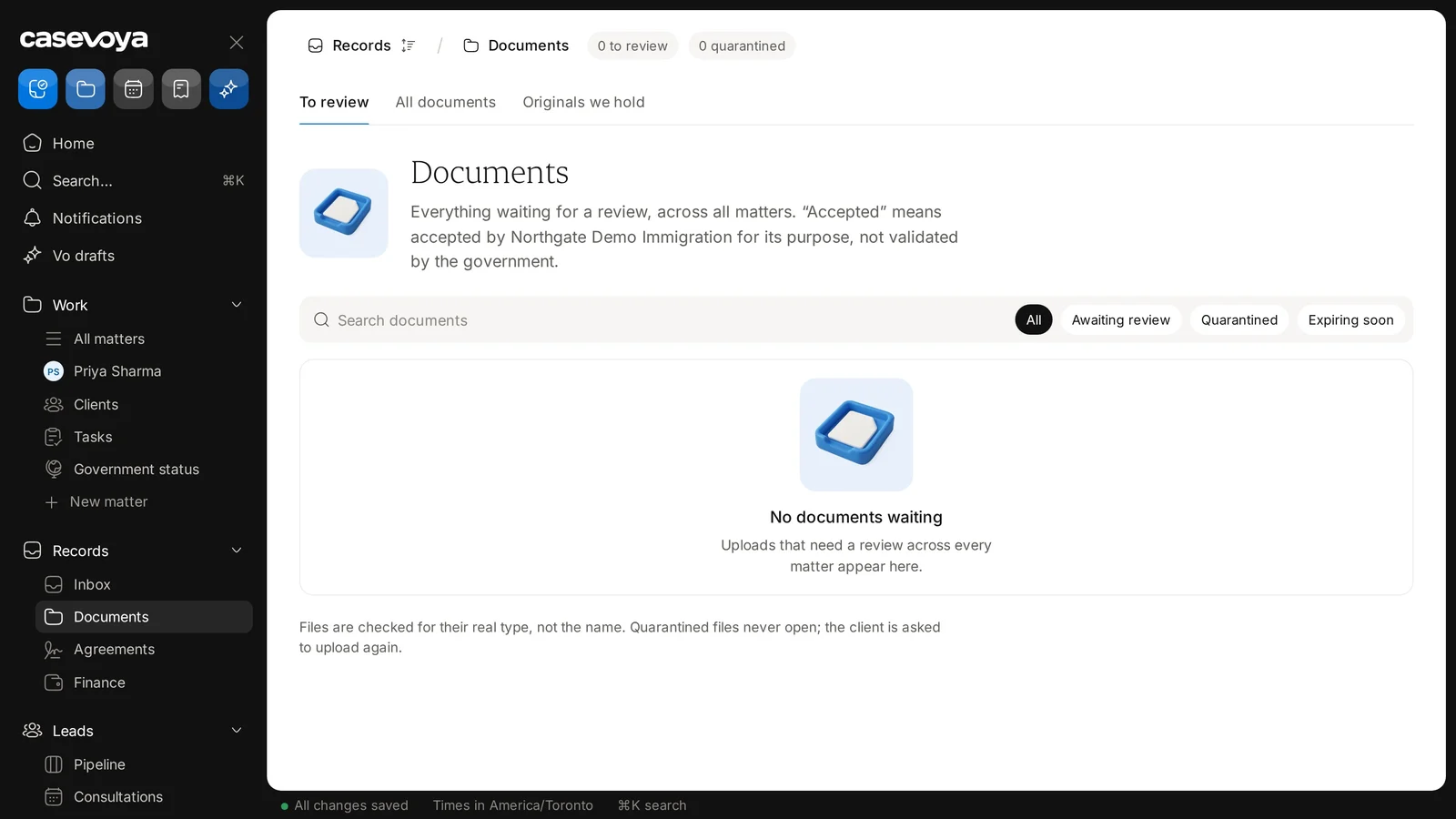
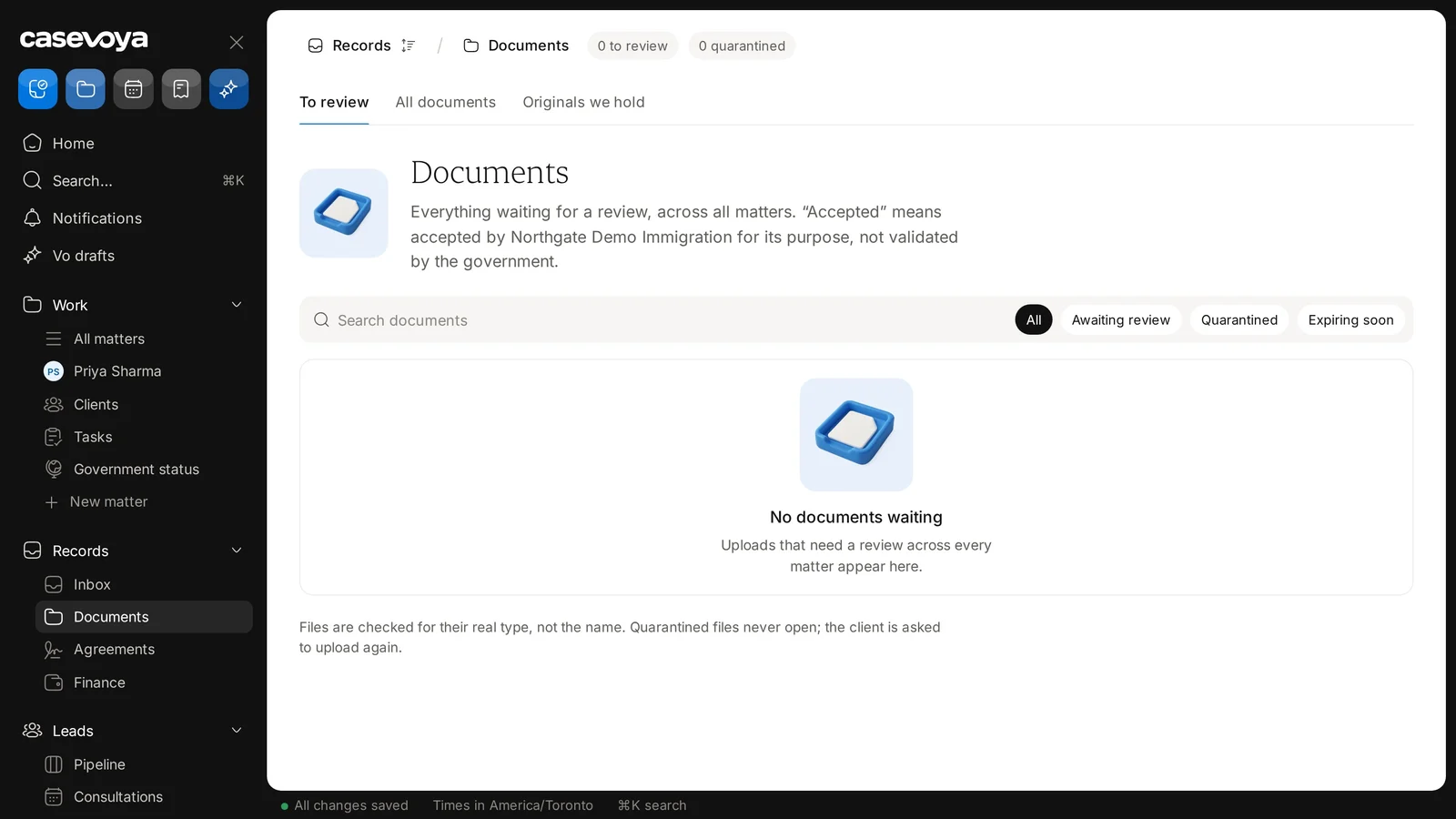
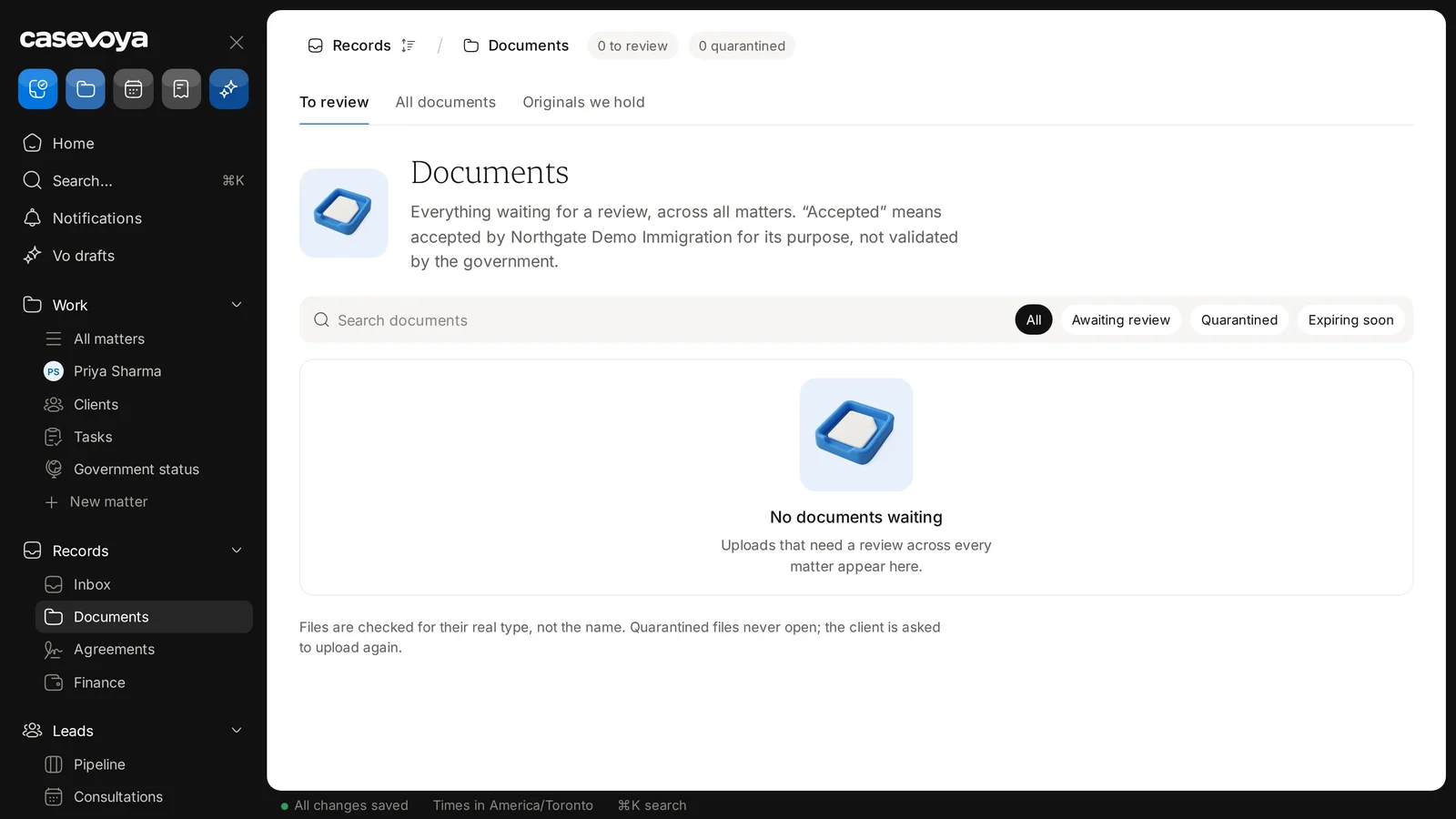
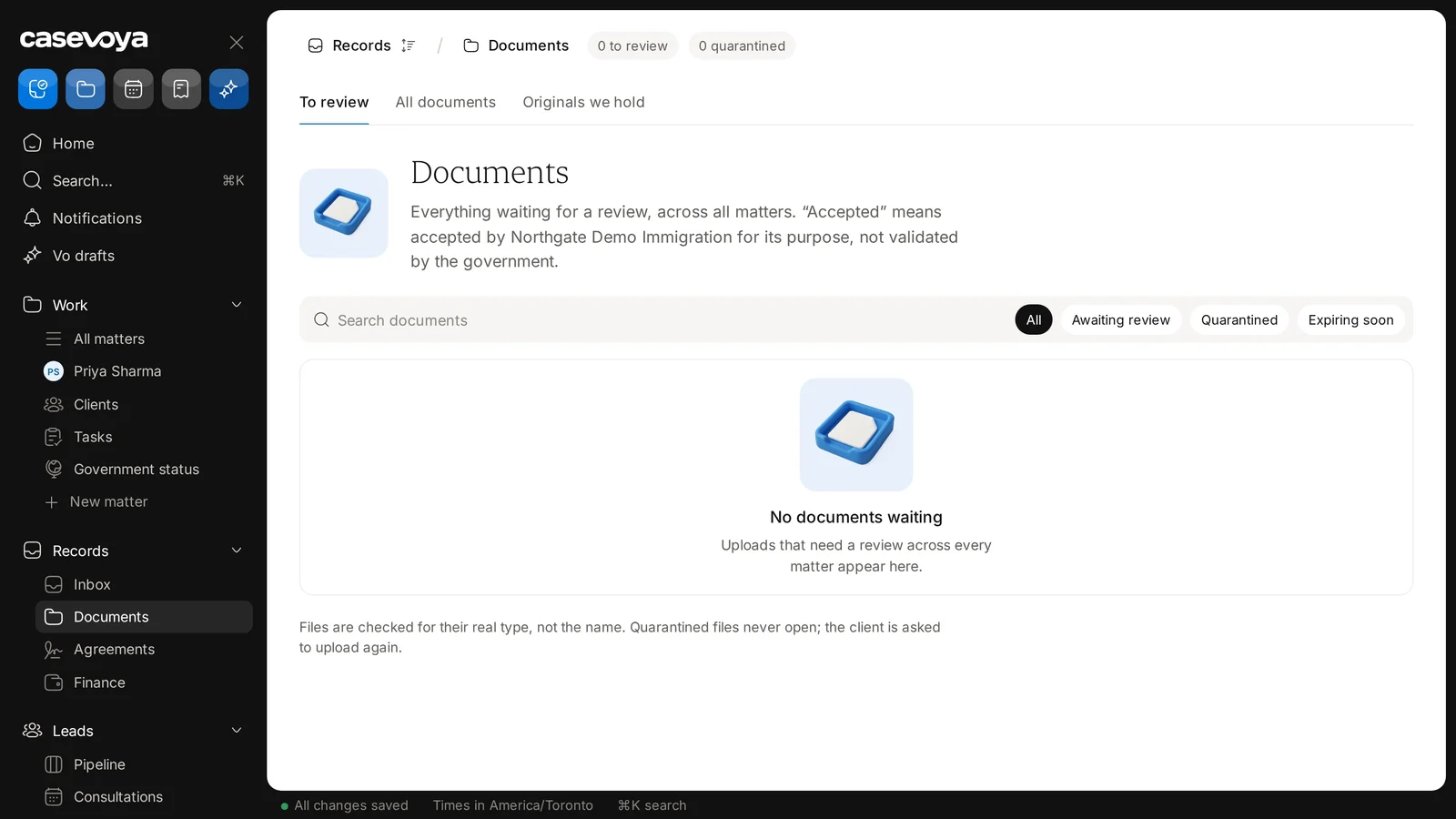
Find it in the left sidebar under Records, as Documents. It is also available from the folder shortcut in the top icon row.
03Counters
At the top, two counters show the queue at a glance: 0 to review and 0 quarantined, so nothing is waiting right now.
04Tabs
Three tabs switch the view: To review, All documents and Originals we hold.
05Accepted
The description reminds you that Accepted means accepted by Northgate Demo Immigration, a fictional demo firm, for its own purpose. It does not mean validated by the government.
06Search, filter
To find a file, type in Search documents. Then narrow the list with All, Awaiting review, Quarantined or Expiring soon.
07File safety
Files are checked by their real type, not their name. Quarantined files never open, and the client is asked to upload again.
08Recap
In short: find Documents under Records, check the counters, switch tabs, search and filter, and rely on the file checks. Next: Agreements.
Overview. Documents lets you review every client upload across all your matters in one queue. This tour shows how it works.
Find it. Find it in the left sidebar under Records, as Documents. It is also available from the folder shortcut in the top icon row.
Counters. At the top, two counters show the queue at a glance: 0 to review and 0 quarantined, so nothing is waiting right now.
Tabs. Three tabs switch the view: To review, All documents and Originals we hold.
Accepted. The description reminds you that Accepted means accepted by Northgate Demo Immigration, a fictional demo firm, for its own purpose. It does not mean validated by the government.
Search, filter. To find a file, type in Search documents. Then narrow the list with All, Awaiting review, Quarantined or Expiring soon.
File safety. Files are checked by their real type, not their name. Quarantined files never open, and the client is asked to upload again.
Recap. In short: find Documents under Records, check the counters, switch tabs, search and filter, and rely on the file checks. Next: Agreements.
 Casevoya