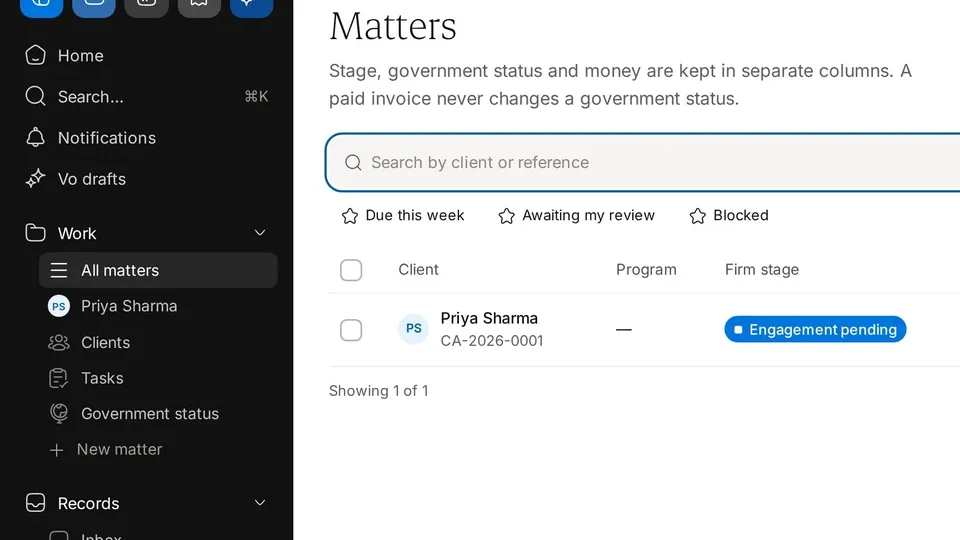
One record per client: their details, matters, documents and portal access in one place.
1:06 video·Captions and transcript·4 written guides
01Overview
0:00 / 1:06
Chapters
10
Invite a client to the portal
Clients get their own login to see next steps, upload documents and sign. Nothing to install.
1
Find the client
Go to Work › Clients. The Portal column shows Not invited until you invite them.
2
Choose Invite to portal
Check their email and preferred language.
3
They accept
They read the portal terms and privacy information, give consent, and set a password.
4
They land on Home
The first thing they see is their next step and who is working on it.
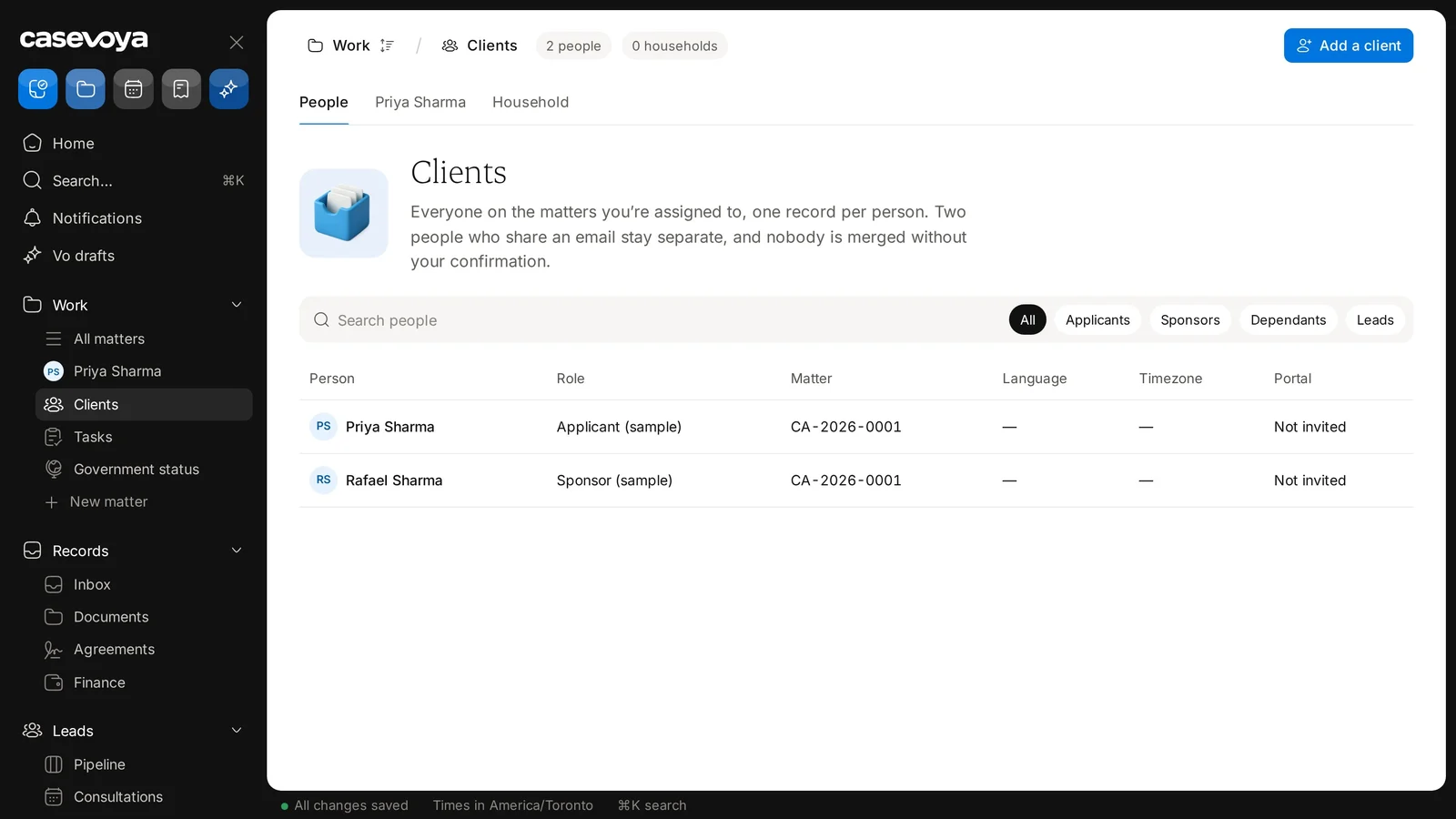
Clients not yet invited to the portal show Not invited. Sample data.
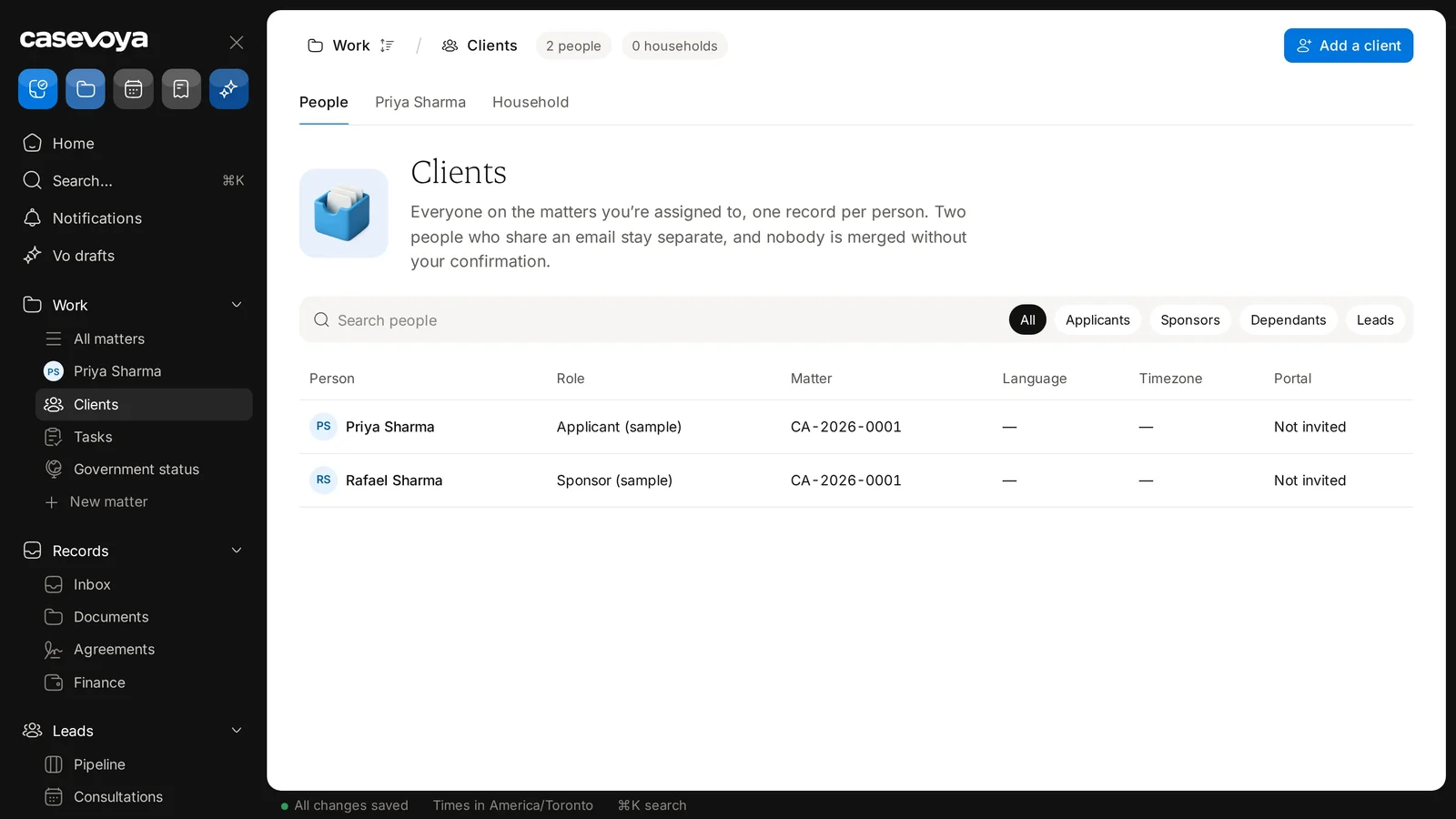
The Language, Timezone and Portal columns on the Clients page. Sample data.
Add family members and choose what each adult sees
Sponsors, adult dependants and guardians each get their own login. Being in the same household doesn’t mean seeing each other’s private records.
1
Add the person
Go to Work › Clients and select Add a client. Choose their role: applicant, sponsor or dependant.
2
Invite adults separately
Each adult gets their own invitation and gives their own consent.
3
Set what is shared
Shared items appear for everyone on the matter. Private items stay with their owner and your staff.
An applicant and a sponsor on the same matter, each with their own record. Sample data.
The Clients page tabs: People, a client tab and Household. Sample data.
What clients see on their home screen
The portal answers one question first: what do I need to do next, and by when?
1
Their next step
One task, with a due date and roughly how long it takes.
2
Four plain answers
What do I need to do, by when, who is working on it, and what happens next.
3
Where things stand
Stages from agreement to decision, in plain words. Updates are recorded by your firm; nothing here is a government decision.
4
Documents
Uploaded and accepted are shown separately, so clients never mistake one for the other.
5
Messages and payments
The latest note from you, and anything they owe, with your firm named as the payee.
In Work › Clients, the Portal column shows whether each person has been invited to the portal. Sample data.
Switch the portal between English and French
Each person picks their own portal language. You can write messages in either.
1
Client side
In the portal footer, choose English or Français. It’s remembered for next time.
2
Firm side
Go to Work › Clients and open the People tab. Set a person’s preferred language so emails arrive in it. Each person’s language shows in the Language column.
3
Templates
Add a French version of each request and message template. If one is missing, we show the English version and flag it to you.
The Clients people list, with Language, Timezone and Portal columns. Sample data.
Screen by screen
Each frame comes from the walkthrough, with the part being explained outlined. Select a frame to play from that moment.
02Breadcrumb
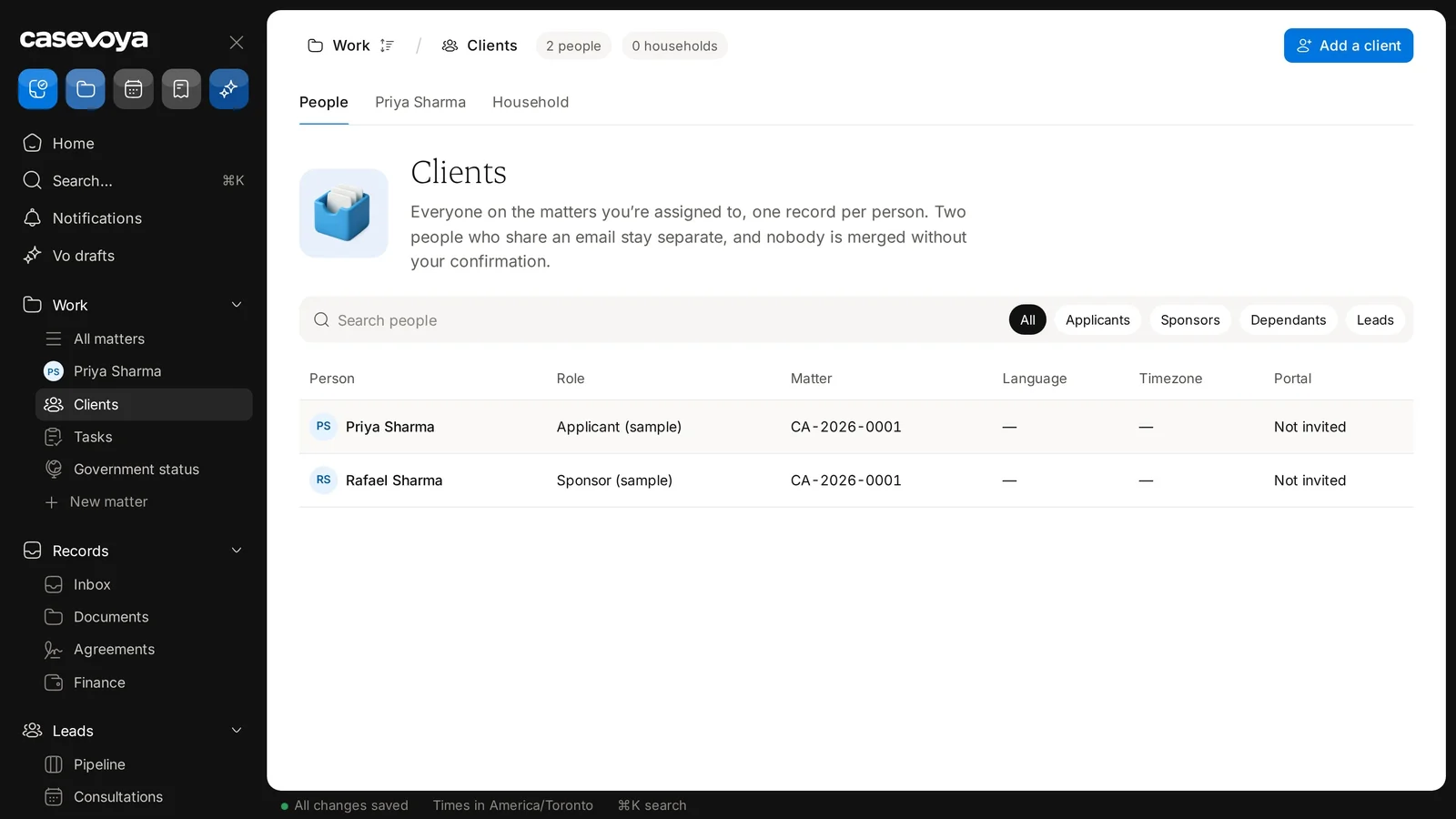
The header breadcrumb reads Work, then Clients, with counts beside it: 2 people and 0 households.
03Add a client
To add someone new, use the Add a client button at the top right.
04Tabs
Below are three tabs: People, a Priya Sharma tab for a fictional sample client, and Household.
05Search
Use the Search people box to find someone in the people list.
06Role chips
Beside it is a row of role chips: All, Applicants, Sponsors, Dependants and Leads.
07First columns
Each row shows Person, Role and Matter,
08More columns
followed by Language, Timezone and Portal.
09Sample rows
In this fictional sample, Priya Sharma is the applicant and Rafael Sharma is the sponsor, both on the same matter. Language and time zone show dashes, and neither has been invited to the portal yet.
10Recap
In short: follow the breadcrumb, add a client, switch tabs, search and filter by role, and read each column. Next: Tasks.
Overview. Clients gives you one record per person across the matters you are assigned to, and nobody is merged without your confirmation. This tour covers the page.
Breadcrumb. The header breadcrumb reads Work, then Clients, with counts beside it: 2 people and 0 households.
Add a client. To add someone new, use the Add a client button at the top right.
Tabs. Below are three tabs: People, a Priya Sharma tab for a fictional sample client, and Household.
Search. Use the Search people box to find someone in the people list.
Role chips. Beside it is a row of role chips: All, Applicants, Sponsors, Dependants and Leads.
First columns. Each row shows Person, Role and Matter,
More columns. followed by Language, Timezone and Portal.
Sample rows. In this fictional sample, Priya Sharma is the applicant and Rafael Sharma is the sponsor, both on the same matter. Language and time zone show dashes, and neither has been invited to the portal yet.
Recap. In short: follow the breadcrumb, add a client, switch tabs, search and filter by role, and read each column. Next: Tasks.
 Casevoya