Agreements is where you track quotes, consultation agreements and service agreements for every client. This tour covers the page.
1:15 video·Captions and transcript·3 written guides
01Overview
0:00 / 1:15
Chapters
10
Send a service agreement for signature
Build the agreement from your quote, send it for signing in Casevoya, and get the signed copy back in the matter.
1
Create a quote
Scope, services, exclusions, fee structure, taxes, government fees, instalments, refund policy and expiry.
2
Generate the agreement
It uses your approved template. Review the preview.
3
Add signers
The client, and anyone else who must sign.
4
Send
Signers get an email with a secure link. You see who has opened and signed.
5
Signed copy
When everyone signs, the executed copy and completion certificate are filed in Agreements.
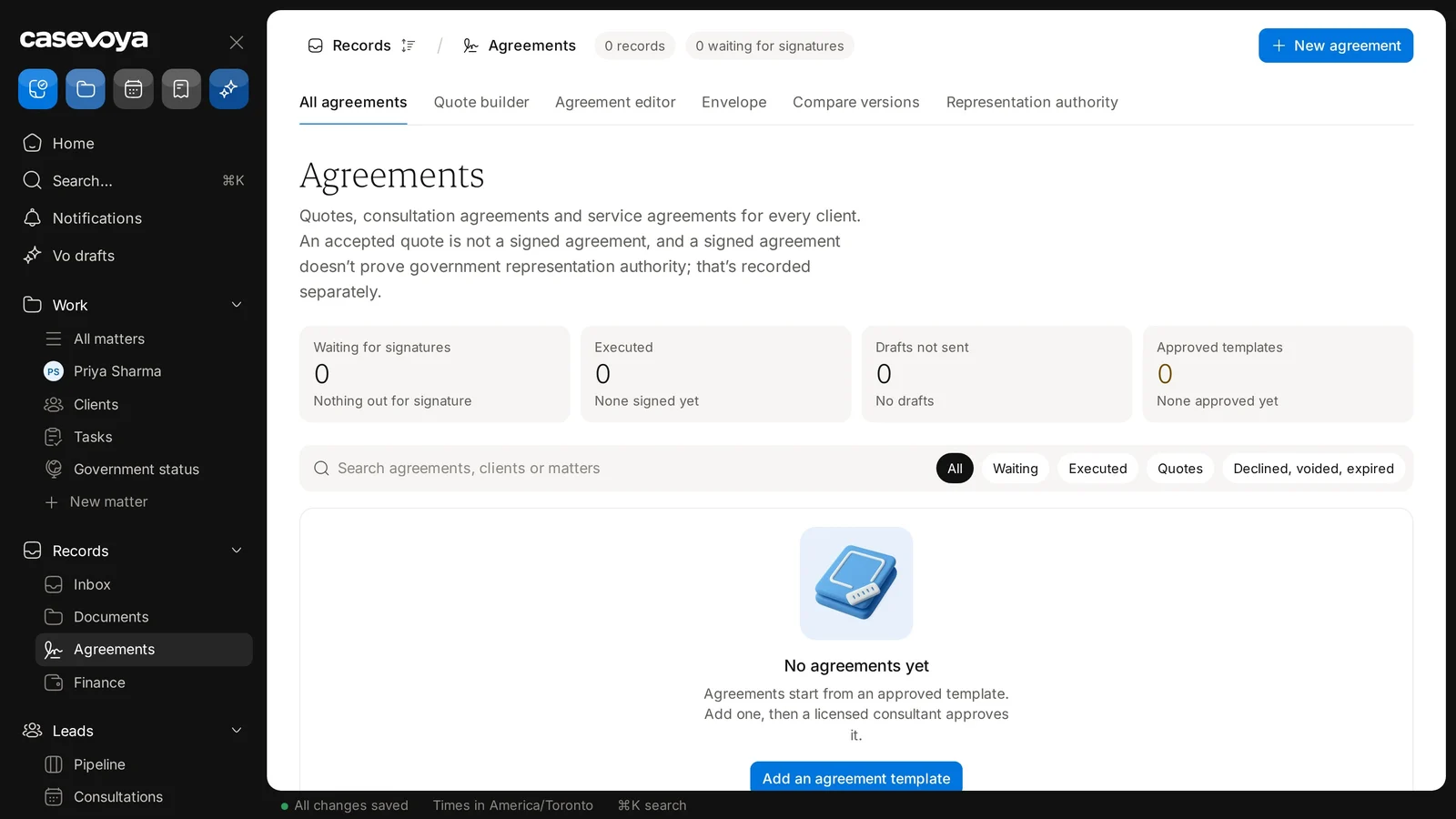
Records › Agreements, with the Quote builder, Agreement editor, Envelope and Compare versions tabs. Sample data.
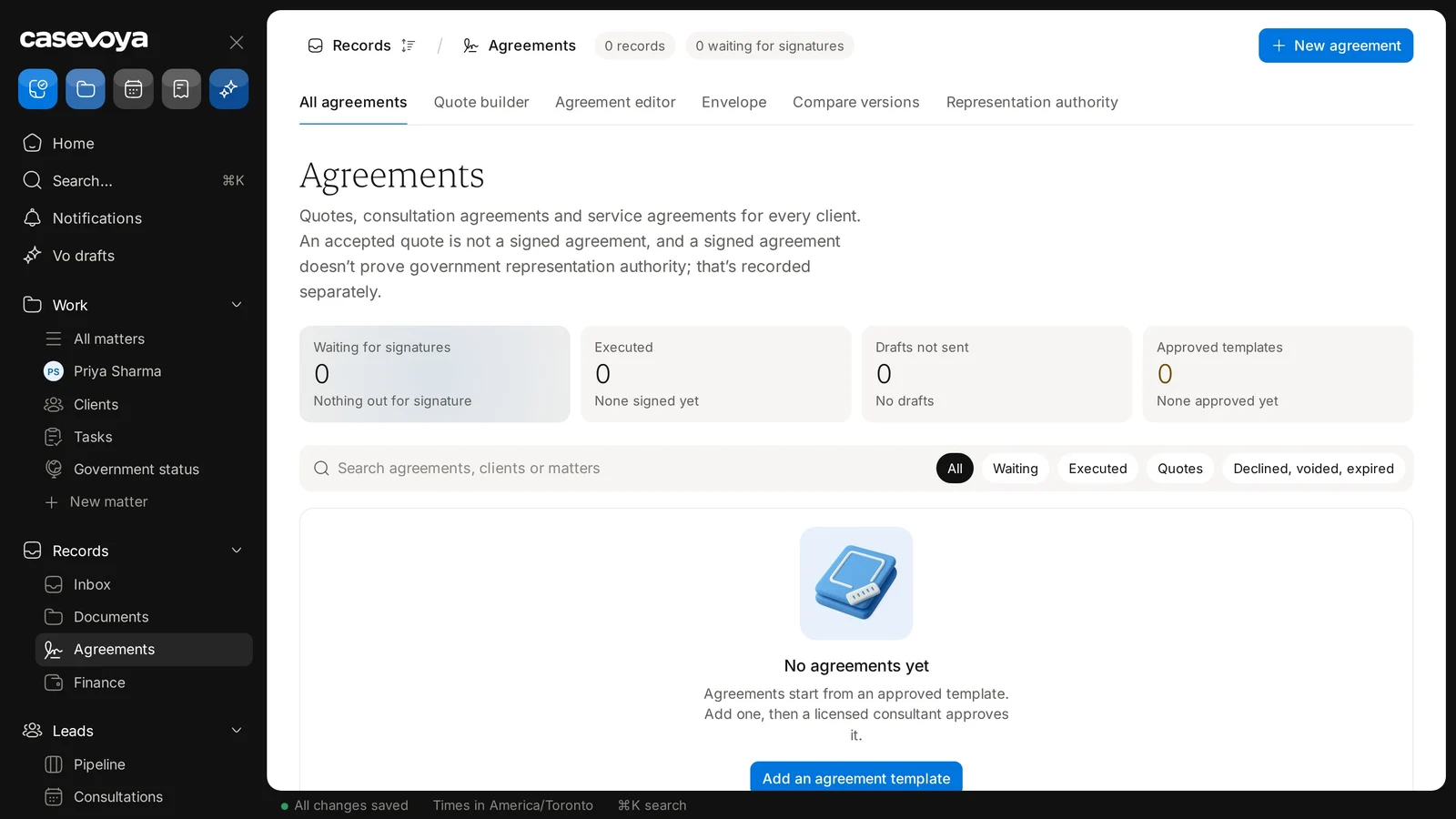
The Waiting for signatures, Executed, Drafts not sent and Approved templates cards. Sample data.
Set signing order and multiple signers
Choose who signs and in what order, for example consultant first, then applicant, then sponsor.
1
Open the agreement draft
Choose Signers.
2
Add each signer
Name, email and how they’ll confirm their identity.
3
Drag to set the order
Or choose “Everyone at once”.
4
Send
Each signer is emailed only when it’s their turn.
Records › Agreements, with the Envelope and Compare versions tabs. Sample data.
What happens if signing is temporarily unavailable
Signing is built into Casevoya. If it’s briefly unavailable, nothing is lost and nothing is faked.
1
Your agreement waits
It shows “Pending: signing temporarily unavailable”.
2
We retry safely
Agreements go out automatically as soon as signing is back.
3
Clients are told
The portal explains the delay. No one is asked to sign twice.
4
Check status
The Casevoya status page shows the incident and when it’s resolved.
The Agreements page cards, including Waiting for signatures and Executed. Sample data.
Screen by screen
Each frame comes from the walkthrough, with the part being explained outlined. Select a frame to play from that moment.
02Find it
Open it from the sidebar under Records, then Agreements. The breadcrumb at the top confirms where you are.
03Quote rule
Read the description carefully. An accepted quote is not a signed agreement.
04Authority
A signed agreement also doesn't prove government representation authority. That is recorded separately; see the Representation authority tab.
05Tabs
The tabs divide the work: Quote builder, Agreement editor, Envelope and Compare versions.
06Count cards
Cards count Waiting for signatures, Executed, Drafts not sent and Approved templates. All read 0 for now.
07Search
To find something, search agreements, clients or matters in the search box.
08Filters
Then filter with All, Waiting, Executed, Quotes, or Declined, voided, expired.
09Start here
There are no agreements yet, because each one starts from an approved template. Add an agreement template, then have a licensed consultant approve it. New agreement sits at the top right.
10Recap
In short: open it under Records, note the quote rule, use the tabs, check the cards and filters, and add a template. Next: Quote builder.
Overview. Agreements is where you track quotes, consultation agreements and service agreements for every client. This tour covers the page.
Find it. Open it from the sidebar under Records, then Agreements. The breadcrumb at the top confirms where you are.
Quote rule. Read the description carefully. An accepted quote is not a signed agreement.
Authority. A signed agreement also doesn't prove government representation authority. That is recorded separately; see the Representation authority tab.
Tabs. The tabs divide the work: Quote builder, Agreement editor, Envelope and Compare versions.
Count cards. Cards count Waiting for signatures, Executed, Drafts not sent and Approved templates. All read 0 for now.
Search. To find something, search agreements, clients or matters in the search box.
Filters. Then filter with All, Waiting, Executed, Quotes, or Declined, voided, expired.
Start here. There are no agreements yet, because each one starts from an approved template. Add an agreement template, then have a licensed consultant approve it. New agreement sits at the top right.
Recap. In short: open it under Records, note the quote rule, use the tabs, check the cards and filters, and add a template. Next: Quote builder.
 Casevoya